A/B Tests
A/B testing allows developers to run a controlled experiment between two or more versions of something in their game to determine which one is more effective. Your audience is segmented into the control group (current performance – no changes) and your test group.
A/B testing is a great way to find the best pricing and game difficulty or test any of your hypotheses.
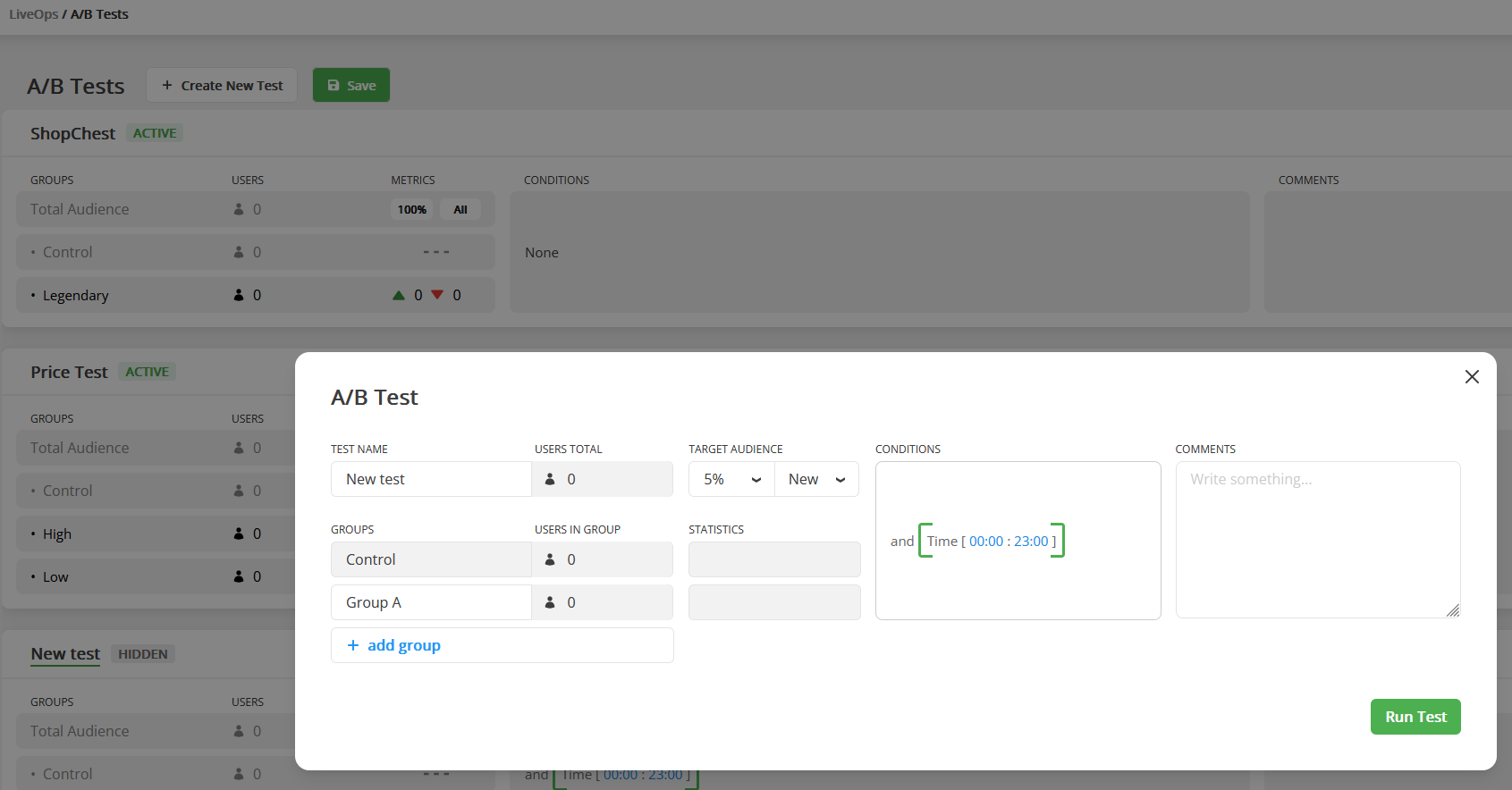
Before using, all A/B Tests must be added to the table.
| Parameter | Description |
|---|---|
| Name | The name of the Test. |
| Groups | Each user gets one random group. |
| Target Audience | The portion of your total users participating in the test. |
| Users Type | Defines the kind of users to target the test: New, Old, or All. If the app is opened for the first time, the user is considered a new one until he restarts the app. |
| Concurrent Test | Such test ignore the fact that some other tests can be active. All concurrent test will be activated for your users and won't affect Non-concurrent tests. |
| Conditions | Conditions that are required to start the A/B Test. After A/B Test starts for a player, it won't be stopped for him even if the conditions turn to False. |
| PreInitLaunch | Defines if the A/B Test can be launched during first OnDataUpdated execution for local data. |
Balancy ensures that each user is not simultaneously participating in two A/B Tests (unless you are running Concurrent Tests). If a user has a running A/B Test, he is skipping all other A/B Tests, even if they target 100% of the audience. Once the A/B Test is finished, the user can join a new one.
A/B tests don't need priority. When the game starts, and a user doesn't have any running A/B Tests, the user collects all Active A/B Tests and picks just one of them, according to the chance.
There are currently 3 ways to work with A/B testing:
- Conditions
-
Use the A/B Test Node in Visual Scripting

-
Make your logic
Fast A/B Testing
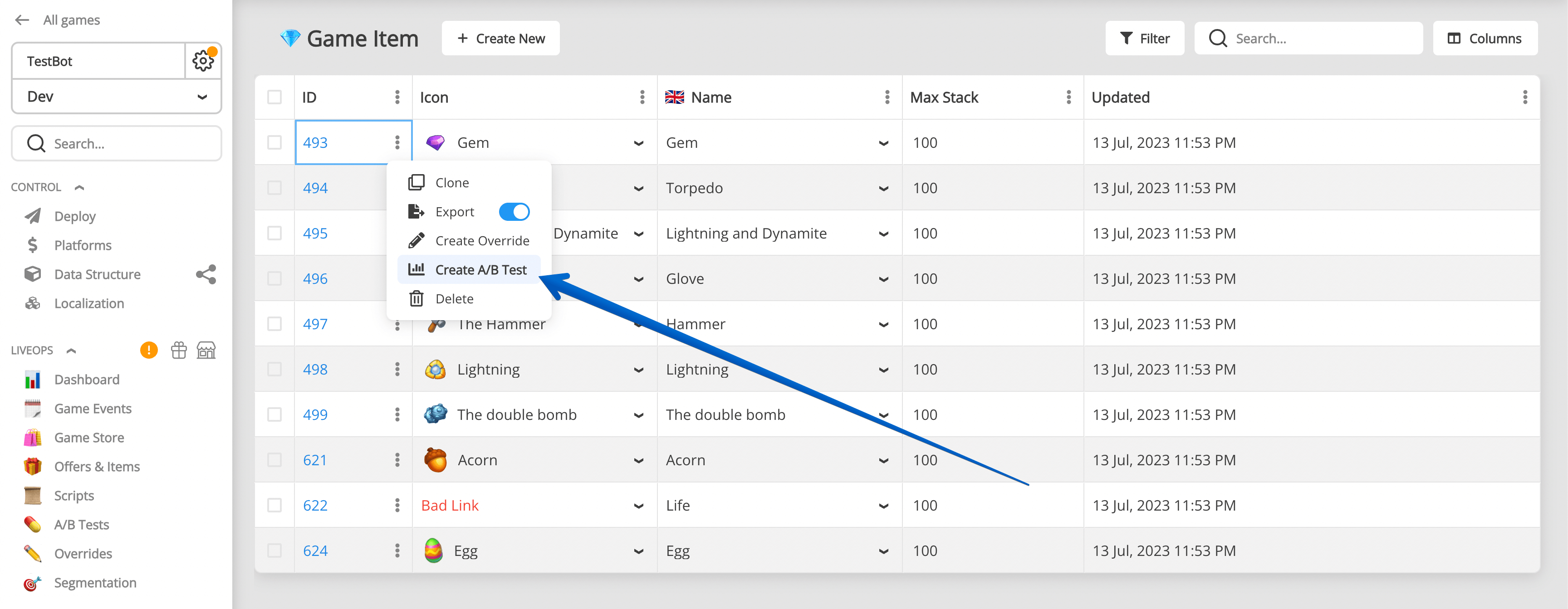
- Find any record in Balancy you want to run A/B Test on.
-
Click on the 3 dots next to the Document Id, and select Create A/B Test.
-
Select parameter you want to A/B Test from the list of available parameters:

-
Create A/B Test.
A/B Test lifecycle
The main rules for each user individually:
- Only one non-concurrent Test can be active at the same time.
- If a Test passed its Condition and wasn't activated due to the User Type or Audience Size, the test will be ignored by this user forever.
- Concurrent Tests exist in a separate world, it is possible to have many active concurrent tests.

Finish A/B-test
When you want to finish A/B Test and apply results:
- Open A/B Test info modal.
-
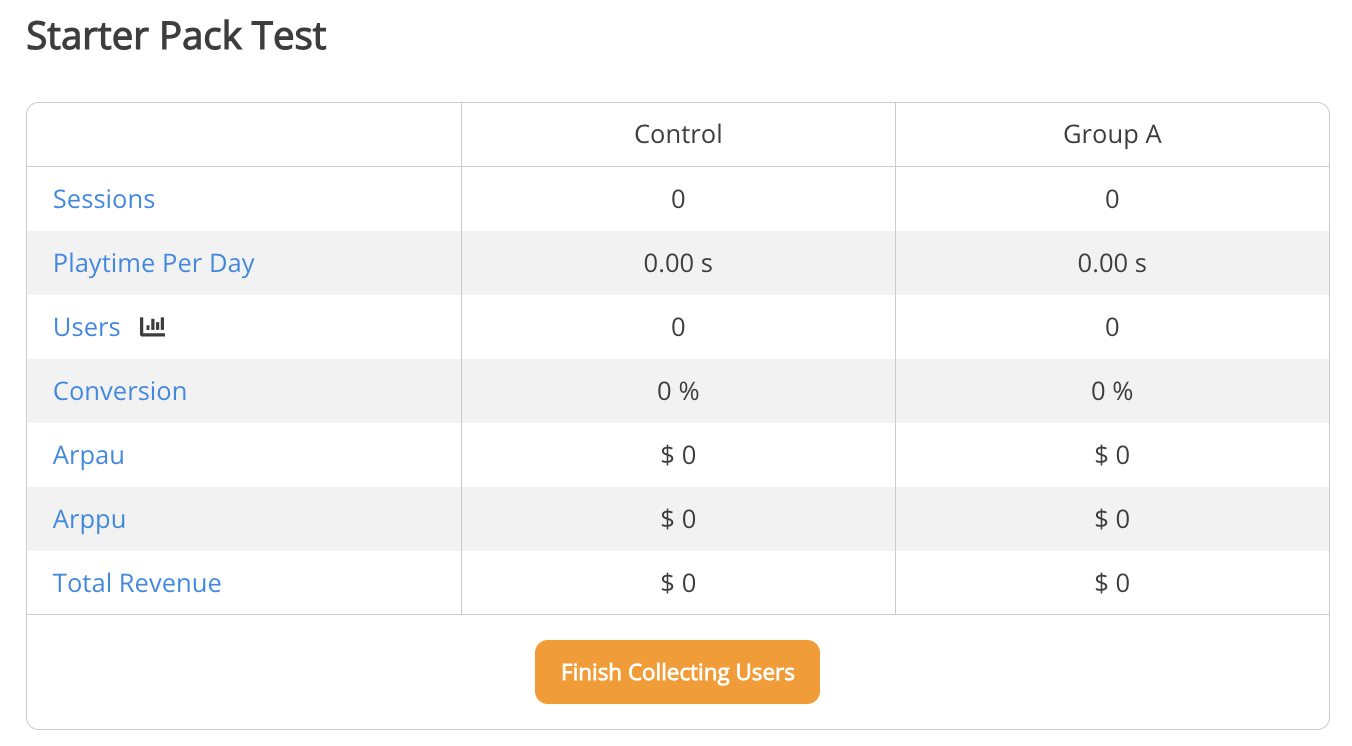
Press "Finish Collecting Users". After that, users will not be able to join this A/B Test.
-
You might want to keep it for some time to collect more data from participants.
- Stop A/B Test. This will stop collecting data from participants.
- Choose variant you want to roll out to all users.
- Save.
Now all overrides for this variant will be applied to documents parameters itself for all users.
You still need to deploy changes after that, so users will see new values.
Deploy and migration!
You have to do all changes on dev environment and then migrate to stage/production. Read launch check list for better understanding data migration process.
External References
For your convenience there is a section for external references to that A/B Test to find what other documents might use it in their setup.
Visual Scripting References shows all scripts where this A/B Test is mentioned in A/B Test node.

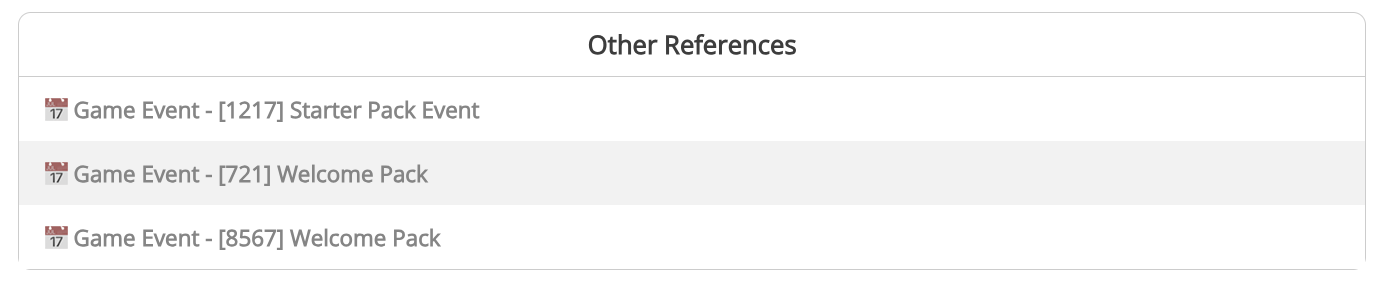
Other References shows all other documents where this A/B Test is used in Conditions.
A/B Test Analysis
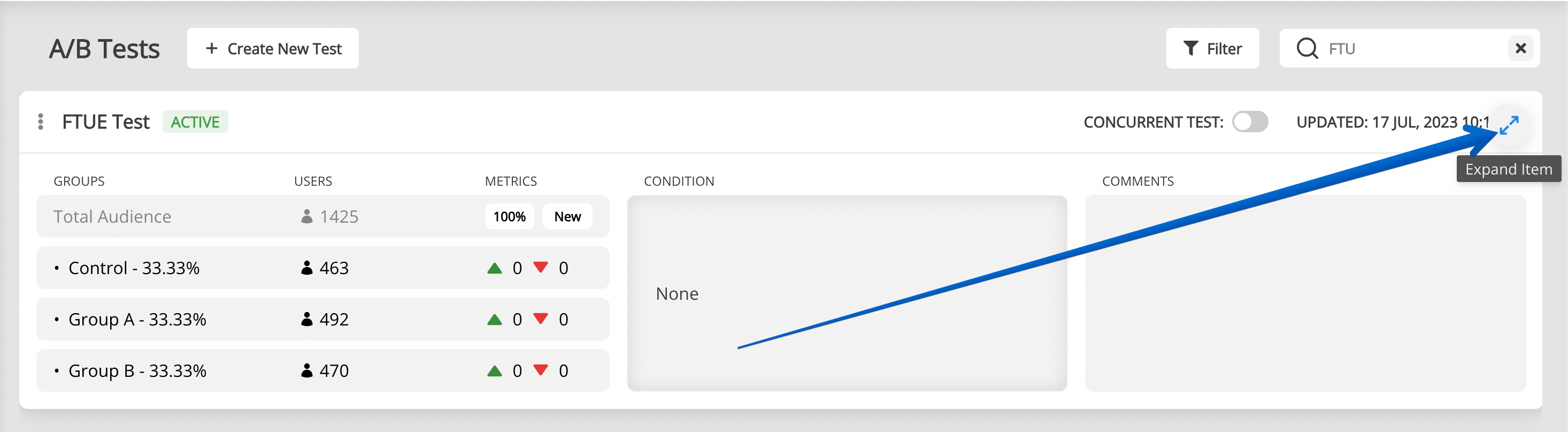
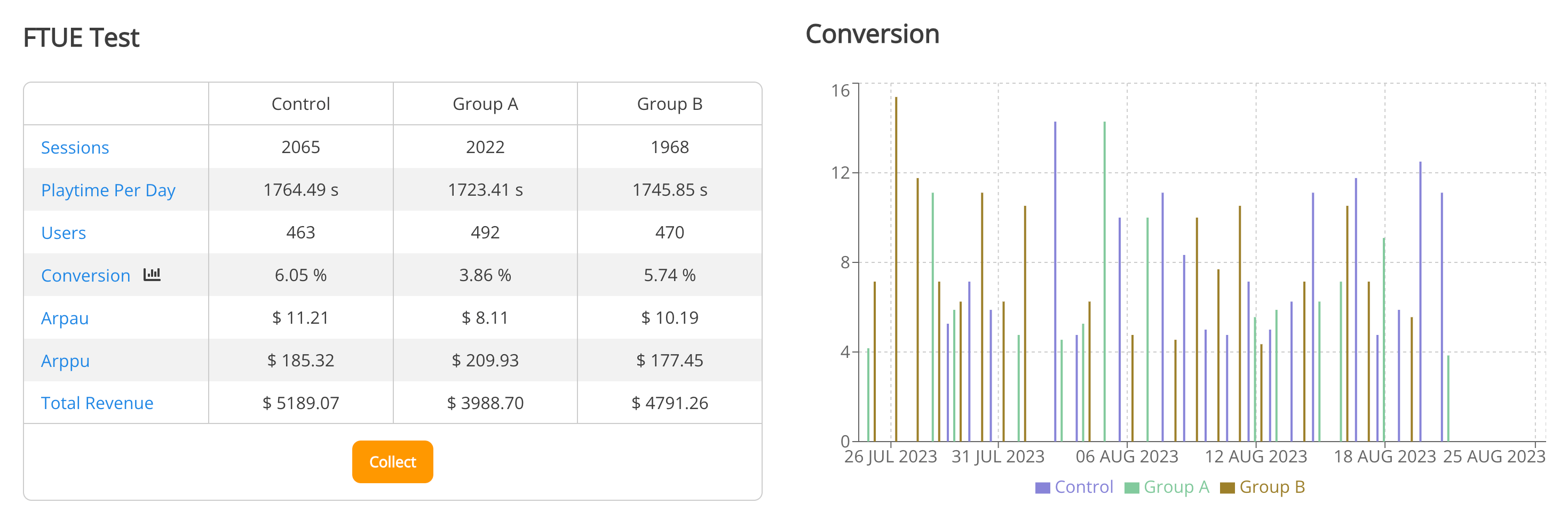
Balancy automatically tracks the performance of A/B Tests and provides you with analytics.
-
Find the A/B Test you need and expand its view:
-
Analyse the performance of each variants:
Integration
- Subscribe to Balancy Callbacks to get live notifications about new A/B tests
- Learn how to get all active abTests here.
Manual Activation
In some cases, you may want to manually control when and how A/B tests are activated for users, especially when integrating with third-party A/B testing solutions or custom user segmentation logic.
When to Use Manual Activation
Primary Use Case: Third-Party A/B Test Integration
Use manual activation when you want to: - Split users using an external A/B testing platform (e.g., Firebase Remote Config, Optimizely) - Use Balancy for configuration management based on the externally-determined test variant - Maintain a single source of truth for user segmentation in your existing analytics platform
Example Scenario:
1. Your analytics platform (e.g., Firebase) assigns users to variants A or B
2. Based on the variant, you manually start the corresponding Balancy A/B test
3. Balancy applies the correct configuration overrides for that variant
4. Your game logic uses Balancy's configuration values
API Method
bool Balancy.API.StartAbTestManually(ABTest abTest, ABTestVariant variant)
Parameters:
- abTest - The A/B Test object from Balancy
- variant - The specific variant to assign to this user
Returns: bool - true if successful, false otherwise
Preventing Automatic Activation
Important: When using manual activation, you should prevent Balancy from automatically starting the A/B test.
Recommended Approach: Add a Condition that never evaluates to true:
- Open your A/B Test configuration in the Admin Panel
- In the Conditions field, add:
- Template:
SmartObjects.Conditions.Empty - Pass:
false
This ensures Balancy will never automatically activate this test and will wait for your manual activation call.
Why this matters: Without this condition, Balancy might automatically assign users to variants based on its own logic, conflicting with your third-party A/B test assignments.
Implementation Example
using UnityEngine;
using Balancy;
using Balancy.Models.SmartObjects.Analytics;

public class ExternalABTestIntegration : MonoBehaviour
{
    void Start()
    {
        // Wait for Balancy to initialize and sync with cloud
        Balancy.Callbacks.OnDataUpdated += OnBalancyDataUpdated;
    }

    void OnBalancyDataUpdated(Balancy.Callbacks.DataUpdatedStatus status)
    {
        // Only activate AB tests after cloud sync to ensure tests exist
        if (!status.IsCloudSynced)
            return;

        // Get AB test configuration from Firebase (best practice: store unnyId and variant index)
        string abTestUnnyId = Firebase.RemoteConfig.GetString("pricing_test_id"); // e.g., "123"
        int variantIndex = (int)Firebase.RemoteConfig.GetDouble("pricing_test_variant_index"); // e.g., 0, 1, 2

        // Get the Balancy A/B test by unnyId
        var abTest = Balancy.CMS.GetModelByUnnyId<ABTest>(abTestUnnyId);

        if (abTest != null && abTest.Variants != null && variantIndex >= 0 && variantIndex < abTest.Variants.Length)
        {
            // Get the variant by index
            var variant = abTest.Variants[variantIndex];

            // Manually start the A/B test with the specified variant
            bool success = API.StartAbTestManually(abTest, variant);

            if (success)
            {
                Debug.Log($"Successfully started A/B test: {abTest.Name}, Variant: {variant.Name}");
            }
            else
            {
                Debug.LogError($"Failed to start A/B test: {abTest.Name}");
            }
        }
        else
        {
            Debug.LogError($"AB Test not found or invalid variant index: {abTestUnnyId}, index: {variantIndex}");
        }
    }
}
Best Practices
- Set Condition to Never Auto-Activate
- Use
SmartObjects.Conditions.EmptywithPass = false - Prevents conflicts between manual and automatic activation
-
Wait for Cloud Sync Before Activation
- Only call
StartAbTestManuallyafterstatus.IsCloudSynced == true - Ensures the test exists in Balancy (not just in local cache)
-
If test was added recently, it may not be in local cache yet
-
Use UnnyId and Variant Index
- Store AB test unnyId (e.g., "123") in your external platform
- Store variant index (0, 1, 2...) instead of variant names
- Access variant by index from
abTest.Variants[index] -
Add bounds checking for variant index
-
Track Activation in Analytics
- Log successful manual activations to your analytics platform
-
Helps verify the integration is working correctly
-
Handle Edge Cases
- What happens if external platform doesn't provide a variant?
- Should there be a default variant?
- Consider adding a fallback mechanism
Common Patterns
Pattern 1: Firebase Remote Config Integration
void Start()
{
    Balancy.Callbacks.OnDataUpdated += OnBalancyDataUpdated;
}

void OnBalancyDataUpdated(Balancy.Callbacks.DataUpdatedStatus status)
{
    // Only activate AB tests after cloud sync
    if (!status.IsCloudSynced)
        return;

    IntegrateWithFirebase();
}

void IntegrateWithFirebase()
{
    // Fetch remote config
    Firebase.RemoteConfig.FetchAsync(TimeSpan.Zero).ContinueWith(task => {
        if (task.IsCompleted)
        {
            Firebase.RemoteConfig.ActivateAsync().ContinueWith(activateTask => {
                // Best practice: Store unnyId and variant index in Firebase
                string testUnnyId = Firebase.RemoteConfig.GetString("balancy_pricing_test_id"); // e.g., "123"
                int variantIndex = (int)Firebase.RemoteConfig.GetDouble("balancy_pricing_variant_index"); // e.g., 0, 1
                StartBalancyTest(testUnnyId, variantIndex);
            });
        }
    });
}

void StartBalancyTest(string testUnnyId, int variantIndex)
{
    var abTest = Balancy.CMS.GetModelByUnnyId<Balancy.Models.SmartObjects.Analytics.ABTest>(testUnnyId);

    if (abTest != null && abTest.Variants != null && variantIndex >= 0 && variantIndex < abTest.Variants.Length)
    {
        var variant = abTest.Variants[variantIndex];
        API.StartAbTestManually(abTest, variant);
    }
}
Pattern 2: Custom Segmentation Logic
void Start()
{
    Balancy.Callbacks.OnDataUpdated += OnBalancyDataUpdated;
}

void OnBalancyDataUpdated(Balancy.Callbacks.DataUpdatedStatus status)
{
    // Only activate AB tests after cloud sync
    if (!status.IsCloudSynced)
        return;

    AssignBasedOnCustomLogic();
}

void AssignBasedOnCustomLogic()
{
    // Determine variant index based on custom business logic
    int variantIndex;

    if (PlayerData.TotalSpend > 100)
    {
        variantIndex = 2; // Premium variant
    }
    else if (PlayerData.DaysSinceInstall < 7)
    {
        variantIndex = 1; // Newcomer variant
    }
    else
    {
        variantIndex = 0; // Standard variant
    }

    // Get AB test by unnyId (e.g., "123")
    var abTest = Balancy.CMS.GetModelByUnnyId<Balancy.Models.SmartObjects.Analytics.ABTest>("123");

    if (abTest != null && abTest.Variants != null && variantIndex < abTest.Variants.Length)
    {
        var variant = abTest.Variants[variantIndex];
        API.StartAbTestManually(abTest, variant);
    }
}
Troubleshooting
Method Returns False: - Check that the A/B test exists and is active - Verify the variant belongs to the specified test - Ensure the user isn't already in another non-concurrent test - Check that the test hasn't been finished or stopped
Configuration Not Applied: - Verify the test has parameter overrides configured - Check that you're accessing configuration after manual activation - Ensure Deploy was done after setting up the test
Conflicts with Automatic Activation:
- Double-check the Condition is set to Empty with Pass = false
- Verify the condition is saved and deployed