Scripts
In Visual Scripting, a script is similar to any scripts in other languages: it is a sequence of instructions or commands that are visually constructed using Nodes and Links. These commands are then executed during runtime on the end user's device. Scripts are typically used to determine which Game Offers should be shown to an end user.
Creating a Script
Scripts are created in the Scripts page, which can be found under the LiveOps section of the Navigation panel. Upon creating a Script, it can be opened by pressing the View button next to the Script name, which will bring you to the Script View.
Using a Script
Activation By Game Event
After creating a Script, it can be activated in-game by first attaching it to a Game Event. The Script activates as soon as the Game Event itself activates when its conditions are met.
Note: If a Game Event has no conditions, it will immediately activate upon starting the game.
If the Script's Input Port is named exactly 'GameEvent' and is of Document type, it will automatically receive Game Event document which has activated this Script. It is useful to get access to Game Event's parameters.
Activation From Code
There are two ways to launch scripts from code: the SDK API and ScriptRef.
SDK API
Launch a script by its CMS ID or name, optionally passing input parameters and a launcher identifier. All methods return an instanceId that you can use to stop the script later.
// Run by name with input parameters
var instanceId = Balancy.API.VisualScripting.RunScriptByName(
    "MyRewardScript",
    "my-launcher-id",
    "{\"rewardAmount\": 100, \"rewardType\": \"gold\"}"
);

// Run by CMS ID
var instanceId = Balancy.API.VisualScripting.RunScriptById(
    "script-cms-id", "my-launcher-id", null
);

// Stop a running script
Balancy.API.VisualScripting.StopScript(instanceId);
// Run by name with input parameters
const instanceId = API.Scripts.runScriptByName(
    "MyRewardScript",
    "my-launcher-id",
    { rewardAmount: 100, rewardType: "gold" }
);

// Run by CMS ID
const instanceId = API.Scripts.runScriptById(
    "script-cms-id", "my-launcher-id"
);

// Stop a running script
API.Scripts.stopScript(instanceId);
| Method | Description |
|---|---|
RunScriptById / runScriptById |
Look up a script by its CMS ID and run it |
RunScriptByName / runScriptByName |
Look up a script by name and run it |
StopScript / stopScript |
Stop a running script by instanceId. Returns true if found. |
Input parameters are passed as a JSON string in C# or a plain object in TypeScript. The keys must match the script's input port names exactly (case-sensitive).
ScriptRef
Documents can have parameters of Script type. Check Dynamic Reward script param of Store Item for example. When a CMS model has a Script field, the generated code exposes it as a ScriptRef — a lightweight wrapper with Launch and Stop methods.
var adConfig = Balancy.CMS.GetModelByUnnyId<AdConfig>("some-unny-id");

if (adConfig.Script != null && adConfig.Script.HasValue)
{
    var instanceId = adConfig.Script.Launch(
        "ad-reward",
        "{\"rewardAmount\": 100}"
    );

    // Stop later
    ScriptRef.Stop(instanceId);
}
const adConfig = CMS.getModelByUnnyId<AdConfig>("some-unny-id");

if (adConfig.script?.hasValue) {
    const instanceId = adConfig.script.launch(
        "ad-reward",
        { rewardAmount: 100 }
    );

    // Stop later
    ScriptRef.stop(instanceId);
}
| Property / Method | Description |
|---|---|
ScriptId / scriptId |
The script's CMS ID |
HasValue / hasValue |
true if a script is assigned to this field |
Launch / launch |
Launch the script, returns instanceId |
Stop / stop (static) |
Stop a running script by instanceId |
Inner Scripts
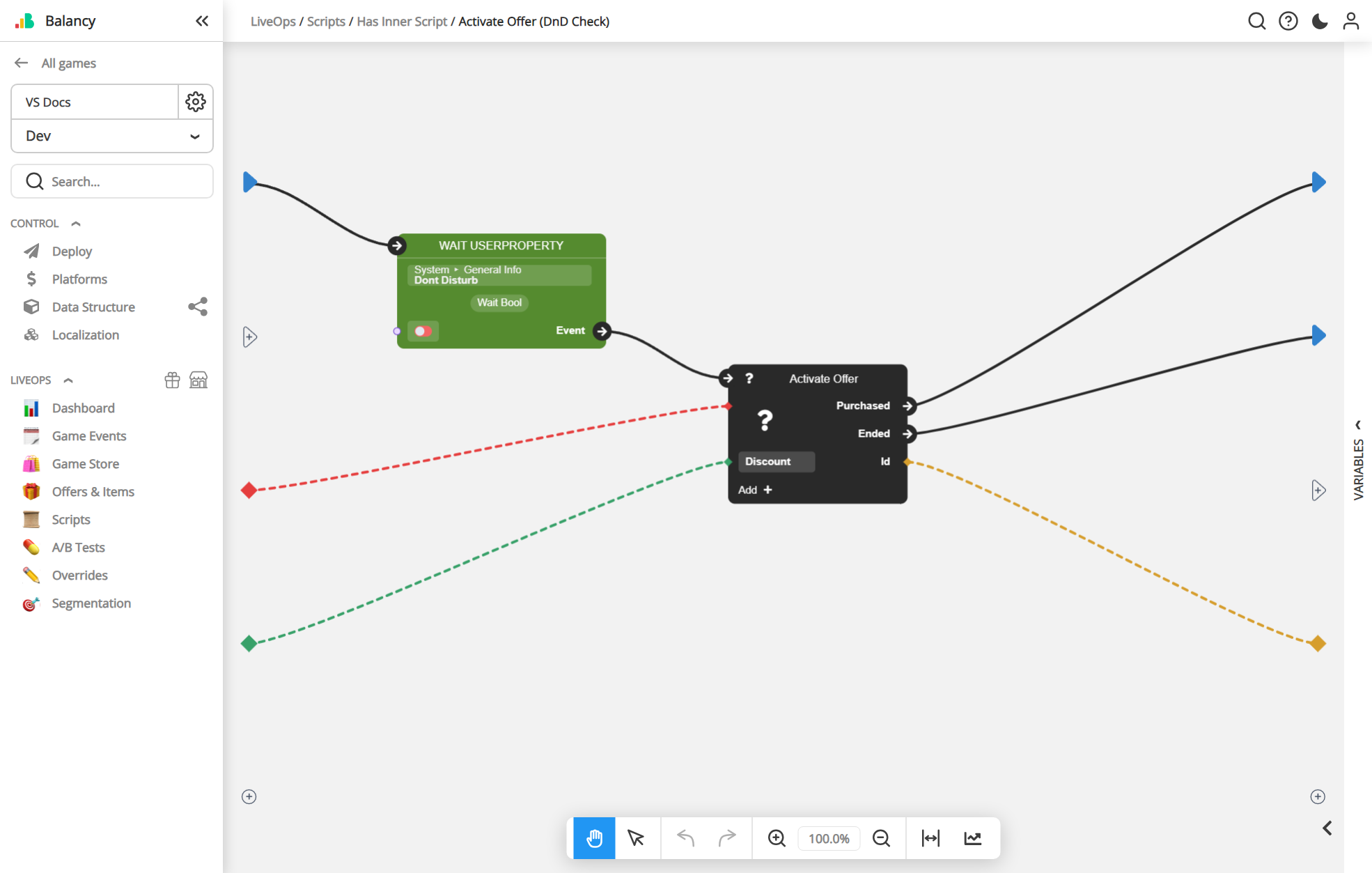
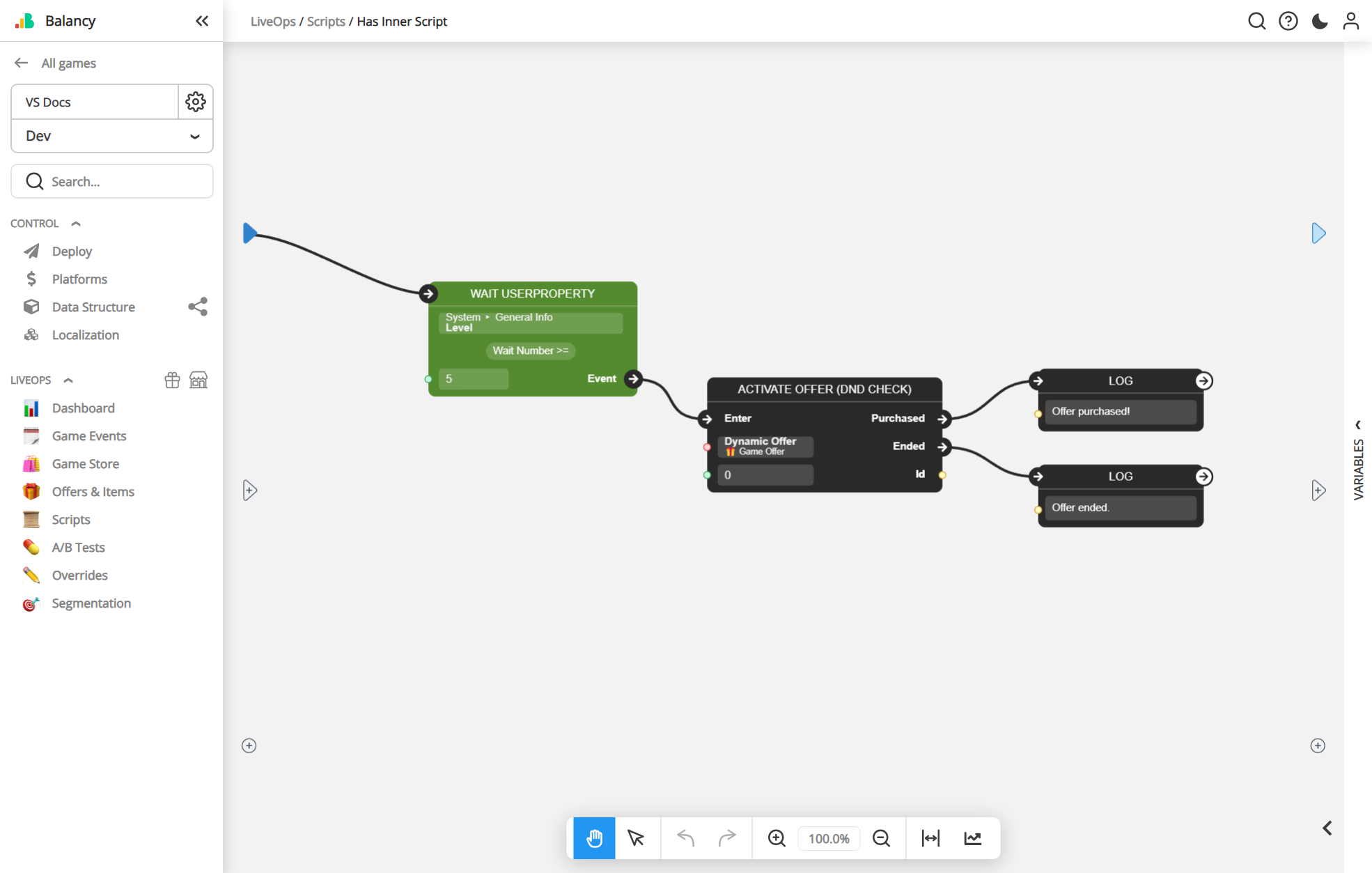
Scripts can also be used within other Scripts. This Script will act like any other Node and can be connected to other Nodes using Links. This allows you to reuse any Scripts you've created previously, so you won't have to recreate any logic you find yourself using often.
Below is a normal Script and how it could be used inside other Scripts.
Tip: Try to make your Scripts do only one thing. This helps prevent redundant logic if you ever need to use the same logic in another Script. It also makes updating a particular logic easier, since you will only need to do the updates in one Script.