Quick Start Guide: Create Test Project
Create a New Project
Select LiveOps Starter Kit when creating new project from the main screen after logging in:
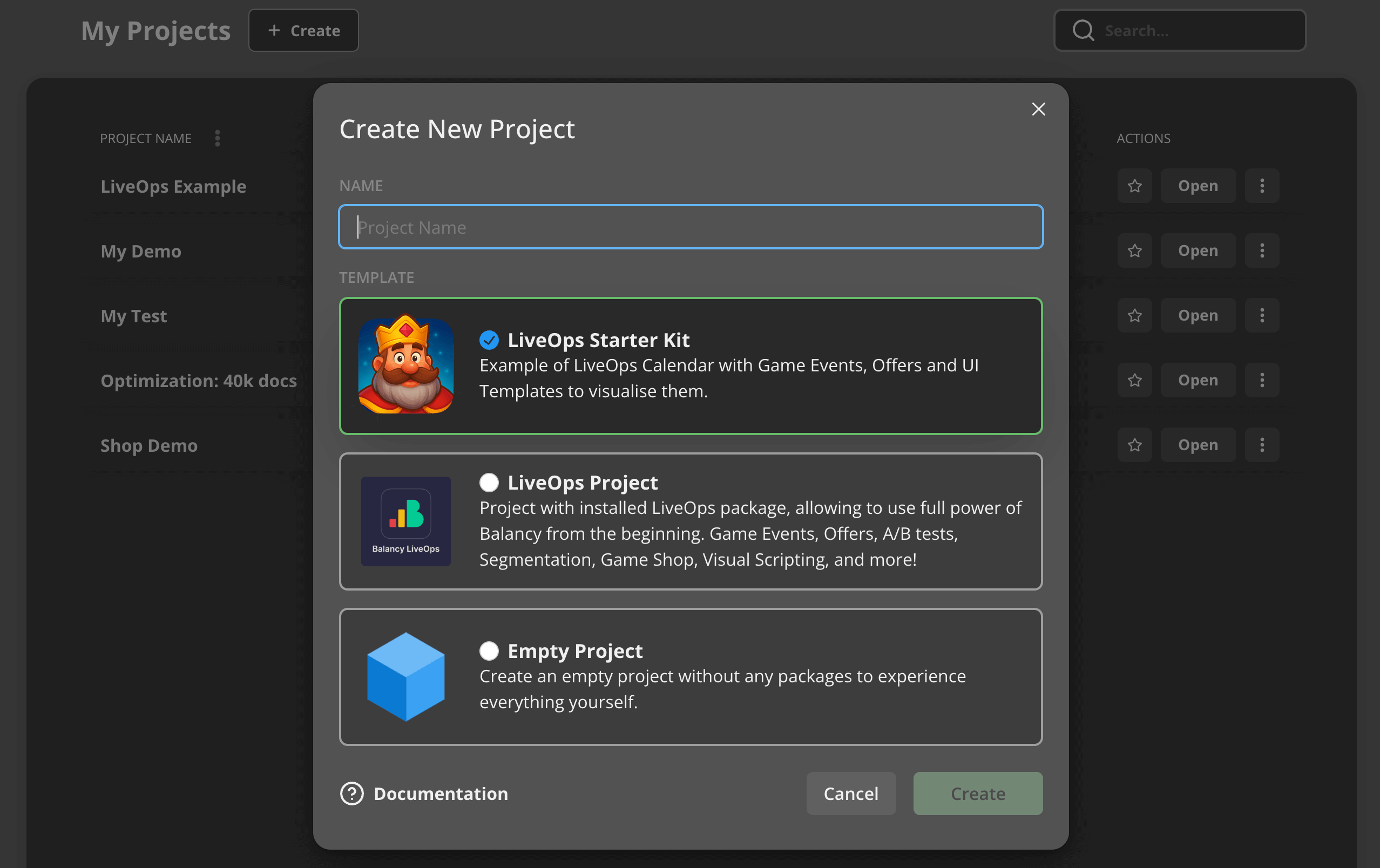
This will create a project with pre-installed LiveOps package and LiveOps Starter Kit package. There you will find examples of creating LiveOps Calendar using built-in structures:
- Game Events, to activate offers
- Simple Offer, with template View for visualization
- Group Offer, with template View for visualization
- Season Pass, with template View for visualization
- StoreItems for offers' content
- Items
- Visual assets
- Localized strings
- Products to demonstrate IAP settings
Explore the Starter Kit
The Starter Kit comes with pre-configured examples so you can see how everything works together. Open the CMS to browse the existing Game Events, Offers, and Items.
Create Your First Game Event
Once you're comfortable with the Starter Kit content, try creating your own:
- Open your App in the Balancy dashboard.
- Navigate to the GameEvent template.
- Click Create.
- Set a name for your event (e.g. "My First Event").
- Configure a Condition to control when the event is active. For example, add a DayOfTheWeek condition to run on specific days.
- Optionally link an Offer to the event, so players see a special deal when the event is active.
For a detailed walkthrough of creating a complete event with offers and conditions, see the LiveOps documentation.
Add Members
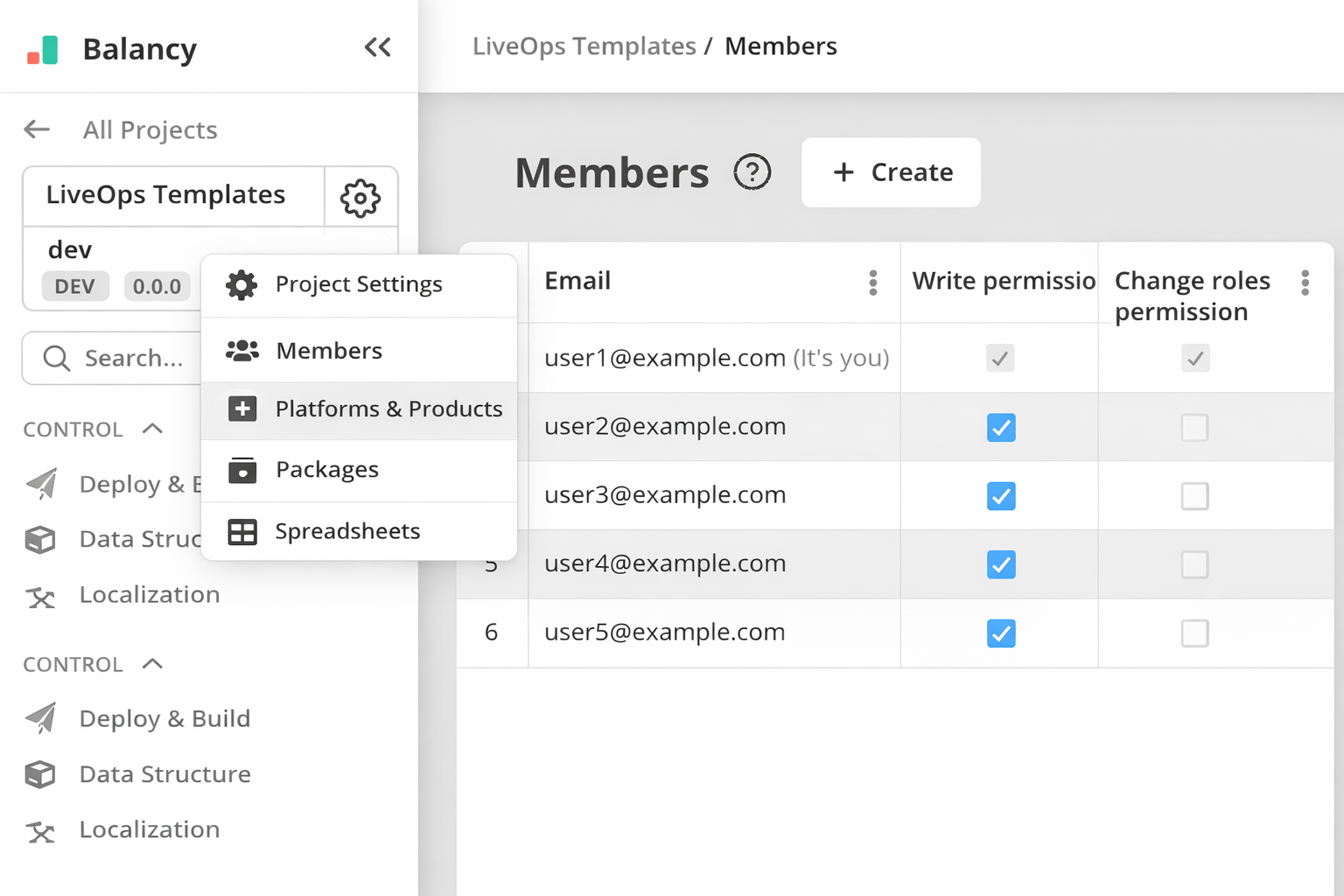
(Optional) Add team members to the project. It is possible to give personal read/write permissions to members.
Deploy
For your players to get the content, it should be deployed.
SDK Integration
Find one of the SDKs, based on your engine: