Game Events
A Game Event is the first step for launching any campaign, like launching a Game Offer. However, Game Events have a much broader meaning. You can use them to plan your in-game activities and events like Halloween, Tournaments, Weekends, and more. Adding Game Events increase your game's retention and engagement.
After installing the LiveOps package, you get a ready-to-use structure for Game Events, and the table looks like this:
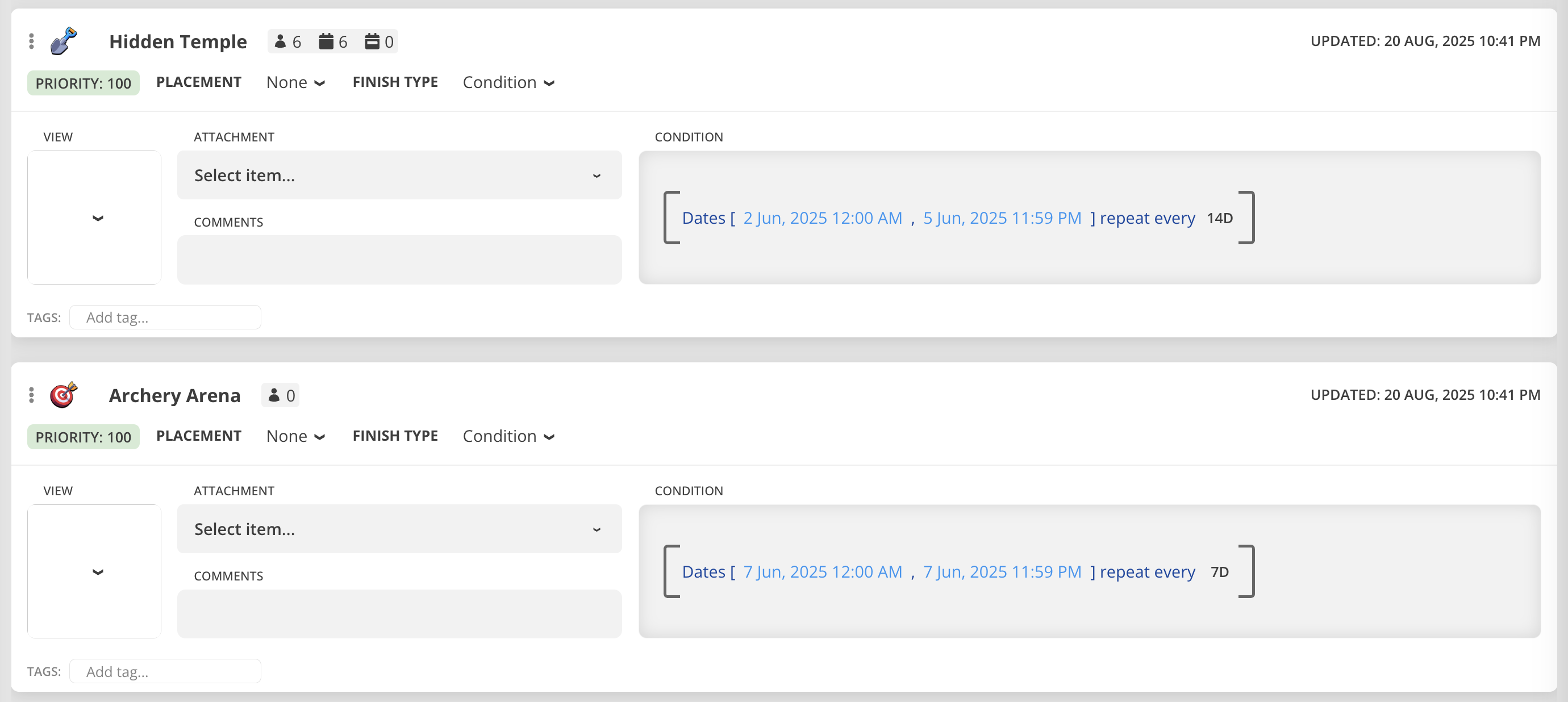
| Parameter | Description |
|---|---|
| Name | The localized name |
| Icon | The icon of the event |
| View | The view associated with this event. |
| Placement | Defines the position of the icon for this event on the screen. Game client can use this information to show event icons in the game. It is demonstrated in built-in simulation Demo App. |
| Priority | Can be used for sorting when displaying icons or showing popups. Implementation of this logic is up to the user. |
| Attachment | Attachment can be either Script, or Game Offer. The script is executed once the event starts. The script can have any logic, but generally, it's used to Segment players and give them Personalised Offers. You can read more about scripts in Visual Scripting section. The same way a Game Offer is activated when event starts, but it simply shows an offer without complex logic. You can learn more about Game Offers in Offers & Items section. |
| Condition | A condition required to meet to start the event. Leave it blank if you want to run this event all the time - this approach works for Starter Pack Offers. But if you have seasonal, weekend, or game anniversary events - you should specify the conditions. In most cases, the conditions are time-based. |
| FinishType | Defines how the Game Event should end. By default the Game Event deactivates once the Condition is false, you can change the type to Duration and specify how long the event lasts after activation. Keep in mind, after deactivation, if Condition is true, the Game Event starts again. |
| Duration | If FinishType is set to Duration, specifies how long the event lasts after activation. Condition becoming false will be ignored. |
| Cooldown | Defines duration of a cooldown before the next instance of the same event can be activated. |
| Limit | ⚠️ Not Supported Yet Defines the amount of launches allowed during the time of valid condition. |
| Manual Remove | When enabled, natural completion marks the event Finished and retains it for final actions until it is explicitly removed. See Event completion and removal below. |
Stopping Events Manually
You can programmatically terminate an active game event before its natural expiry using StopEventManually / stopEventManually. When called, the event is immediately deactivated, its cleanup chain runs (attached scripts are stopped, linked offers are deactivated), and OnEventDeactivated followed by OnEventRemoved fires. Removing an already Finished event emits only OnEventRemoved.
This is useful for events driven by player actions — for example, a challenge the player completes early, a quest the player explicitly closes, or an event a script decides to end based on custom logic.
Cooldown Parameter
The cooldown parameter controls how long (in seconds) the event must wait before it can activate again.
| Value | Behavior |
|---|---|
-1 (default) |
Use the cooldown configured for this event in the CMS |
0 |
No cooldown — the event can reactivate immediately once its conditions pass |
> 0 |
Override the CMS cooldown with this many seconds |
Note: The cooldown overrides the CMS-configured value only for this particular stop. The CMS value is still used for natural expirations.
SDK Usage
You can call the method on a GameEvent model instance or on an EventInfo data instance.
// Via GameEvent model
GameEvent myEvent = /* e.g. from CMS */;
myEvent.StopEventManually(-1);   // use CMS cooldown
myEvent.StopEventManually(0);    // no cooldown
myEvent.StopEventManually(3600); // 1-hour cooldown override

// Via EventInfo (convenience — delegates to the linked GameEvent)
EventInfo activeEvent = /* e.g. from Profiles.System.SmartInfo.GameEvents */;
activeEvent.StopEventManually(-1);
// Via SmartObjectsGameEvent model
const myEvent: SmartObjectsGameEvent = /* ... */;
myEvent.stopEventManually(-1);   // use CMS cooldown
myEvent.stopEventManually(0);    // no cooldown
myEvent.stopEventManually(3600); // 1-hour cooldown override

// Via SmartObjectsEventInfo (convenience)
const activeEvent: SmartObjectsEventInfo = /* ... */;
activeEvent.stopEventManually(-1);
A Finished event can still be present and is removed by this call. If no instance is present, the host SDK call emits no lifecycle notifications and does not change cooldown. The WebView API rejects an explicit instanceId that is no longer present. Pass cooldown explicitly in C# and TypeScript; only the View bridge defaults it to -1.
Event completion and removal
OnEventDeactivated / onEventDeactivated means the activity has finished. OnEventRemoved / onEventRemoved means that EventInfo instance has been removed from SmartInfo.GameEvents. Each is emitted once per transition; removing an already Finished event never emits Deactivated again. The new callback requires matching updated native/WASM core and SDK wrappers.
With Manual Remove = true, keep the icon available after the event becomes Finished: the player can open its View, claim rewards or complete other final actions, then call StopEventManually(-1) / stopEventManually(-1). Remove the icon on Removed, using InstanceId / instanceId to identify this occurrence, not the configuration ID.
| Scenario | Notifications, in order |
|---|---|
| Natural completion, Manual Remove = false | Deactivated → Removed |
| Natural completion, Manual Remove = true | Deactivated only; EventInfo remains in the list |
| Manually remove an already Finished event | Removed only |
| Manually stop an active event, either Manual Remove value | Deactivated → Removed |
| Repeat a stop after the instance was removed | No additional notifications |
This also applies to duration expiry and events reconciled after offline time. Cleanup of an event whose CMS configuration was deleted, or an event-manager reset, emits Removed for the instance and Deactivated only if it was not already Finished. Replacing/loading a whole profile is a separate lifecycle: rebuild UI from OnDataUpdated / onDataUpdated and profile-reset callbacks rather than expecting a removal callback for every previous-profile item.
At Removed, the instance is no longer in the list, its linked offer is deactivated, its instance-specific custom data is deleted, and the removal cooldown has been recorded when the CMS configuration still exists. Custom data remains available while the event is Finished but not removed. Attached scripts stop at Deactivated. Copy the IDs needed by asynchronous work during the callback; do not keep using the removed native object afterward. A deleted CMS model may make GameEvent / gameEvent null.
Removing from inside a Deactivated handler is supported: finish subscribers are notified before Removed, with no duplicate finish notification. Callbacks are optional subscriptions; no extra setting is needed to enable Removed.
// Subscribe when creating the UI; unsubscribe when disposing it.
void HandleEventRemoved(Balancy.Data.SmartObjects.EventInfo info)
{
    RemoveEventIcon(info.InstanceId); // Your UI function, keyed by occurrence.
}
Balancy.Callbacks.OnEventRemoved += HandleEventRemoved;
// Later:
Balancy.Callbacks.OnEventRemoved -= HandleEventRemoved;
const subscription = Balancy.Callbacks.onEventRemoved.subscribe(info => {
    removeEventIcon(info.instanceId); // Your UI function.
});
// Later:
Balancy.Callbacks.onEventRemoved.unsubscribe(subscription);
Removal notifications inside Views
Views use the bridge notification event, not the host SDK callback class. OnEventRemoved has numeric type 113 and carries event_id (configuration ID) and instance_id (removed EventInfo instance ID).
function onNotification(event) {
    const data = event.detail;
    if (data.type === balancy.NotificationType.OnEventRemoved) {
        removeEventIcon(data.instance_id); // For a View displaying multiple events.
    }
}
window.addEventListener('balancy-notification', onNotification);
// Remove the listener when the component is destroyed:
// window.removeEventListener('balancy-notification', onNotification);

// After awaited reward claims / final writes, remove this particular occurrence:
await balancy.stopEventManually(-1, eventInfo.instanceId);
The host closes a View owned by the removed event and clears its native owner context. A parent View displaying several events remains open when another instance is removed. Complete final operations before calling stop; do not depend on further event reads after removal. TypeScript's autoCloseOnOwnerDeactivation: false disables automatic closing, but removed native owner pointers are still invalidated.
Extension
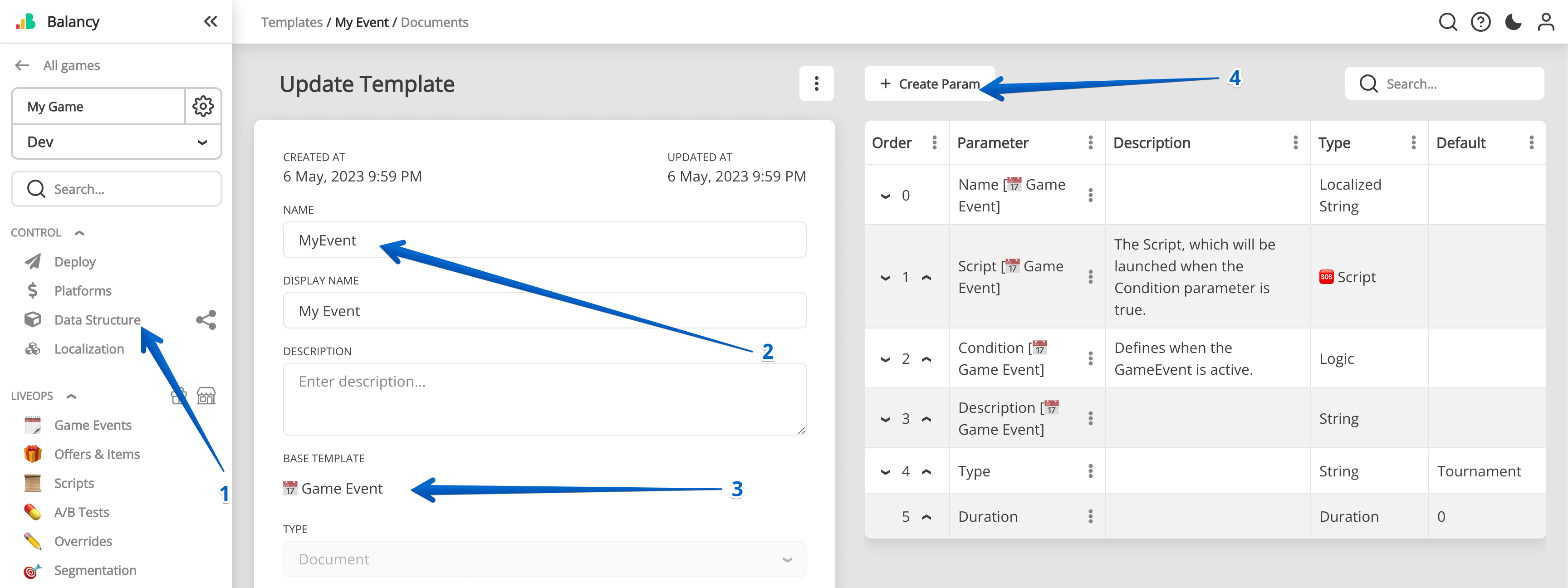
If your game requires additional parameters, you should inherit a new Template from 📅 Game Event and add as many parameters as needed.
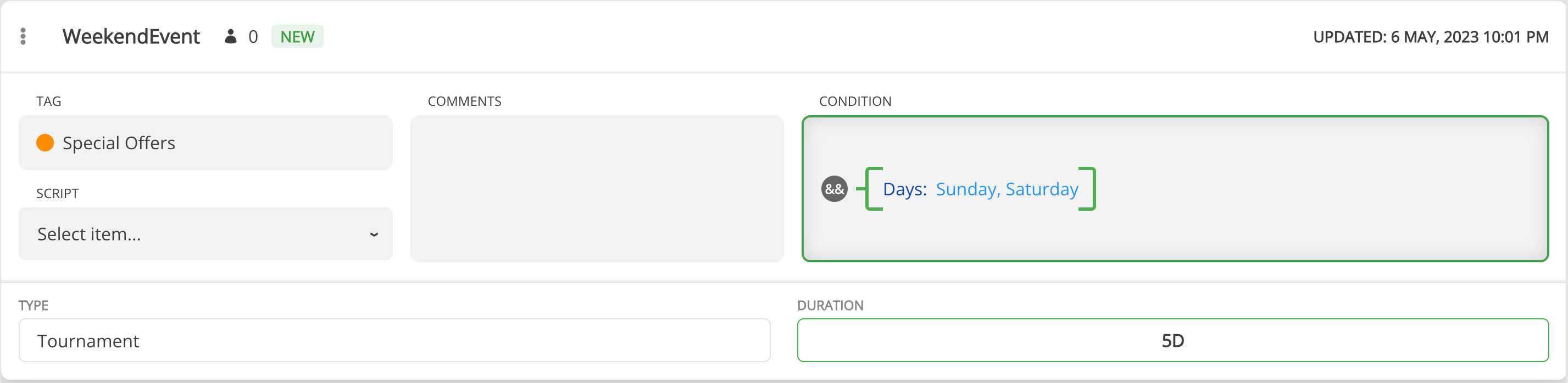
When you create a new Event, make sure to select the new Template you just created, and then you'll get something like this:
Integration
- Subscribe to Balancy Callbacks to get live notifications about new or ended events.
- Learn how to get all active events here.
- Learn how to use Game Events with Tasks for quests and missions.