Step-by-step Integration
First Steps
- Install Nutaku Unity package.
- Basic Balancy integration.
- Install Balancy payments module using upm:
openupm co.balancy.unity-purchasingor directly from github: https://github.com/balancy-liveops/plugin_cpp_unity_purchasing.git. - Install Balancy Nutaku module using upm:
openupm add co.balancy.nutakuor directly from github: https://github.com/balancy-liveops/plugin_cpp_unity_nutaku.git. - Add game in Balancy dashboard.
- Add Nutaku platform in Balancy on platforms page.
-
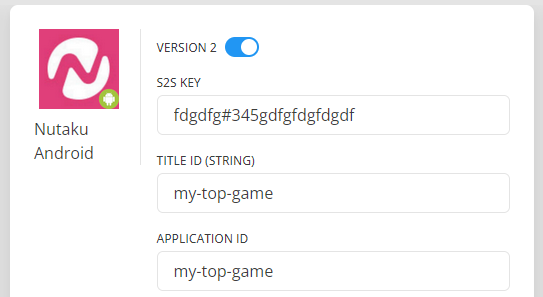
Copy S2S Key, Title id (put it into two field: title id and application id) from Nutaku dashboard to Balancy. Don't forget to turn on Version 2 toggle.
-
On the Nutaku dashboard add Handshake Url and Game Payment Handler Url:
- Handshake Url:
https://webhooks-nutaku-lb-1.prd.balancy.dev/v2/nutaku/handshake/{environment}. - Game Payment Handler Url:
https://webhooks-nutaku-lb-1.prd.balancy.dev/v2/nutaku/payments/{environment}.
Where
{environment}is the environment where you are testing your game on. It can be one of these values: development, stage, production. - Handshake Url:
-
Add
ENABLE_NUTAKUandNO_UNITY_PURCHASINGdefine symbols. -
Now you can authorize in Nutaku and buy products using Balancy.
In some cases there could be some issues with unknown classes or methods. In this case use menu item: Tools ► Nutaku ► Fix Asmdef GUID.
Authorization
Just call Balancy.Platforms.Nutaku.NutakuNetwork.NutakuInstance.Login:
Balancy.Platforms.Nutaku.NutakuNetwork.NutakuInstance.Login(result =>
{
  if (!result.Success)
      Debug.LogError("Nutaku auth error: " + result.Error.Code + " => " + result.Error.Message);
});
Payments
In Web build most part is done in Nutaku's UI, but in Android the payments flow could be different. In some cases it works via in-game UI, sometimes using redirection into webview. To handle both cases you need to provide additional callbacks.
In cases of in-game logic you need to pass OnConfirmPurchase callback. Balancy calls it after approve from nutaku (correct item, user has gold). When you receive event in this callback, you need to show confirmation window to user. And pass result of his choice into our callback.
- First, read payments doc and in-game store documentation.
-
Now you can add your own products to use it later. You can do it on the products page.
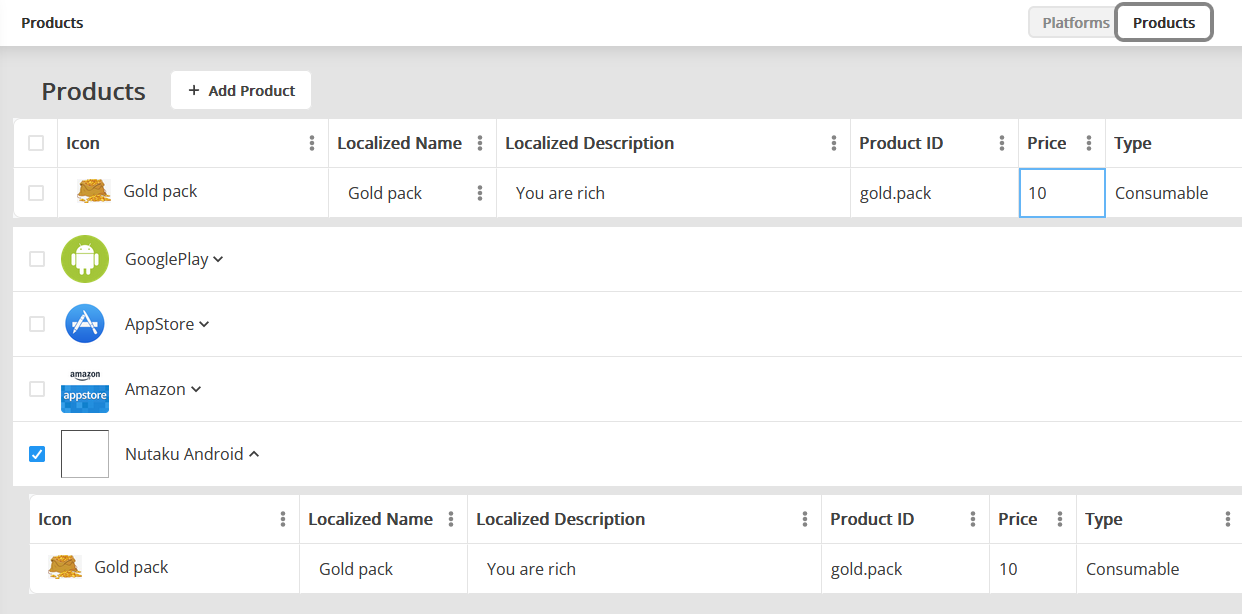
Localized name and localized description are special types. Those strings will automatically use translation depending on user language settings. You can read about our localization system on this page.
-
Deploy changes on Deploy page.
Don't forget to deploy
All changes applied only after deploy. If you change something on the products page, deploy everything before testing.
-
You need to pass
OnConfirmPurchasecallback usingBalancy.Platforms.Nutaku.NutakuNetwork.NutakuInstance.SetOnConfirmPurchaseCallback. This callback needed for correct payments flow. -
Now you can purchase items. For example, offer with code like this:
Balancy.API.InitPurchaseOffer(offerInfo, res => { Debug.Log("Product purchase: " + res.Success); if(res.Success) { // give your playr gold } }); -
Internally we do all the magic (including server validation).
Potential Issues
Don't use same users on different environments. It will lead to problems with payments handling. We'd recommend to add prefix to your test users, e.g. dev_my_user_1, prod_my_user_1 to differentiate them.
Editor and Android auth flow
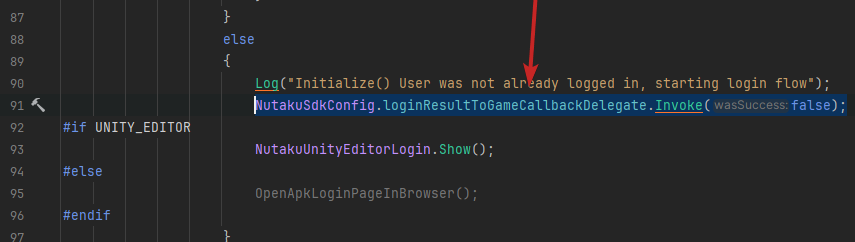
For some reason in Unity loginResultToGameCallbackDelegate could be called twice. If user isn't logged in, this callback will be called with false, and after successful login with true. But if user logged in previous session, this callback with be called only once with true after autologin.
So, because of this behaviour callback on NutakuNetwork.NutakuInstance.Login could be triggered twice. If you don't want such behavior, you can comment 91 line in NutakuSdk.cs:
Testing in Editor
In Editor you can test only game for Android (at least, authorization). You will not able to use an API which displays Nutaku WebView content, so it's imposible to test payments there.
If you want to test the game in Unity Editor, you need to configure 5 fields in the Assets/Plugins/Nutaku/Scripts/NutakuSdkConfig.cs with your sandbox-specific values:
- Environment ("SANDBOX" or "PRODUCTION")
- TitleId (string value)
- AndroidPackageName
Pass OnConfirmPurchase callback using Balancy.Platforms.Nutaku.NutakuNetwork.NutakuInstance.SetOnConfirmPurchaseCallback. This callback needed for correct payments flow.
Platforms
WebGL
Add this line into script section of your root html to make Balancy lib work:
const balancyData = {};
Potential Issues
- Special characters in username. Don't use any special characters in login and nickname rather than number and alphabets.
- Purchase process is not started. Make sure you provided all need information on the Balancy products page: image, name and description are requires fields.
Android
-
Errors on build tools installation.
Failed to install the following SDK components: build-tools;30.0.1 Android SDK Build-Tools 30.0.1 The SDK directory is not writable (C:\Program Files\Unity\Hub\Editor\2021.3.20f1\Editor\Data\PlaybackEngines\AndroidPlayer\SDK)
An error occurs during the tool installation process, usually due to insufficient permissions. Sometimes, you might not even need to install these tools. Check the Android SDK folder at SDK\build-tools; there you will find all installed build tool versions.
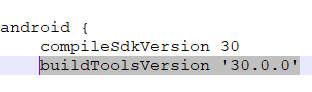
In most cases you can change build tools version in mainTemplate.gradle file to your installed version.