Tasks
Tasks define goals for players, commonly used for quests, missions, daily challenges, and achievements. Each task has an icon, description, reward, and a specific goal type that determines how progress is tracked.
Base Task
The parent component is Base Task. It doesn't have any goals on its own, so its child templates should be used to define specific goal types.
| Parameter | Type | Description |
|---|---|---|
| Icon | Image | Displayed in UI |
| Description | Localized String | Goal description shown to the player |
| Reward | List\<ItemWithAmount> | Items added to Inventory when the task is claimed |

To define a game-specific goal, inherit a CMS template from Task Custom and add your parameters. Its SDK wrapper handles activation, progress, completion, failure, and cleanup; see Custom tasks. Inheriting directly from Base Task adds data fields but does not provide the custom-task lifecycle.
Built-in Task Types
The LiveOps package provides automatic task types for common goals, plus Task Custom for progress driven by your game.
Task Item
Track item interactions: collect, spend, or own a specific amount of a given Item.
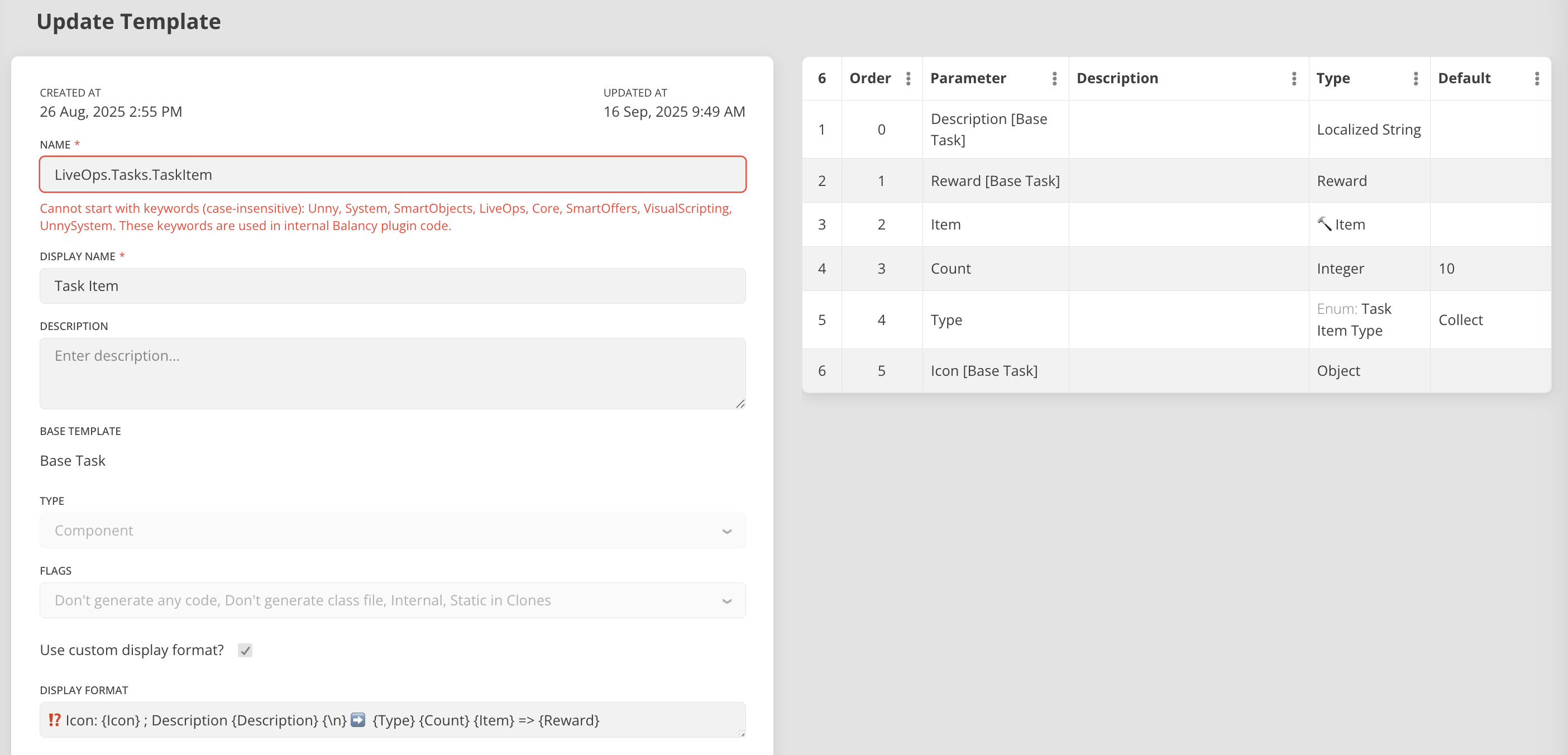
| Parameter | Type | Description |
|---|---|---|
| Target Item | Item | Which item to track |
| Required Amount | int | Amount needed to complete |
| Type | enum | Collect, Spend, or Own |
Type Behaviors:
| Type | Tracks | Description |
|---|---|---|
| Collect | Items gained | Progress increases when items are added to Inventory. Spending doesn't affect progress. |
| Spend | Items spent | Progress increases when items are removed from Inventory. Gaining doesn't affect progress. |
| Own | Current inventory count | Progress equals current Inventory count. Can decrease if items are spent. |
Own Type Can Revert
With the Own type, task completion is not permanent. If a player's inventory count drops below the required amount (e.g., by spending items), the task reverts from Completed back to InProgress.
Task Complete Levels
Complete a specified number of levels. Progress is tracked automatically via the Level user property from the System Profile.

| Parameter | Type | Description |
|---|---|---|
| Levels To Complete | int | Number of levels to finish |
Task Complete Levels Streak
Complete a specified number of levels in a row without losing.
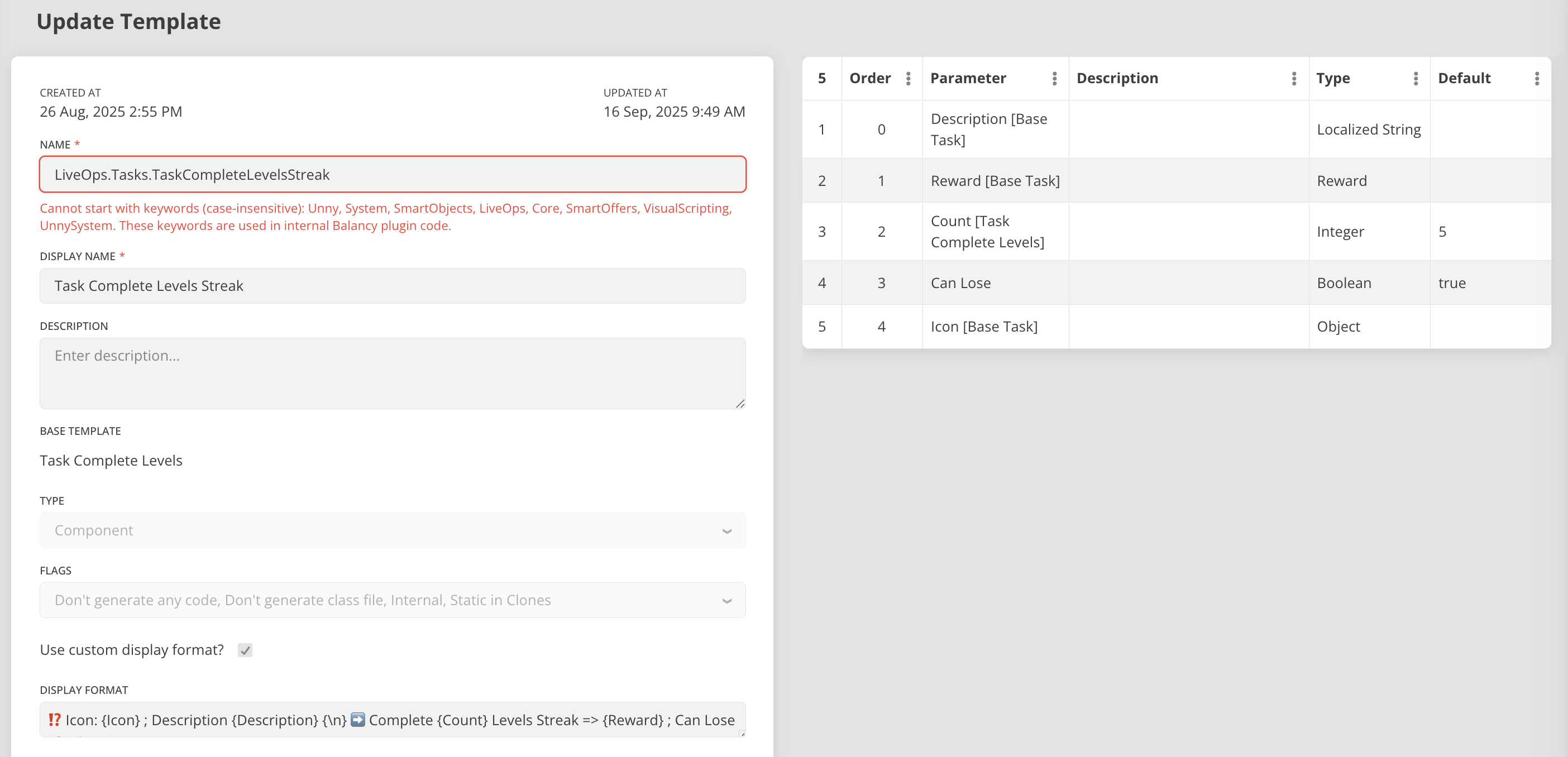
| Parameter | Type | Description |
|---|---|---|
| Streak Length | int | Consecutive wins needed |
| Can Lose | boolean | Determines what happens when the player loses a level |
Can Lose Behavior:
| Can Lose | On Level Failure |
|---|---|
| true | Task fails completely (Status = Failed). Must be restored via API to retry. |
| false | Streak resets to 0, but task remains active. Player can keep trying. |
Task Condition
Use Task Condition when an existing Balancy Condition expresses the goal, such as reaching a player segment. Select the Condition in the task document. When the task activates, the SDK evaluates the condition and subscribes to its dependencies; it completes the task when the condition becomes true. A condition that is already true completes the task immediately. Completion is final; later changes do not reopen it.
| Parameter | Type | Description |
|---|---|---|
| Condition | Condition reference | The condition the player must satisfy |
Task Field Number
Use Task Field Number to watch a numeric field in a player profile, for example System.Level >= 10 or a custom score field. Select the profile and field path, a comparison, and a target value. The SDK reads the field on activation, observes changes, and completes the task once the comparison matches. A missing or non-numeric field does not complete it.
| Parameter | Type | Description |
|---|---|---|
| Full Path | Profile + field path | Numeric profile field to observe |
| Comparison | enum | Equal, Greater, Greater Or Equal, Lower, Lower Or Equal, or Not Equal |
| Value | number | Target for the comparison |
IsNullOrEmpty is not a numeric comparison and is not supported here. TaskInfo.Progress is a non-negative integer display value, truncated for fractions and capped at the 32-bit integer maximum. For the actual observed number, including fractions, read TaskInfo.NumericProgress: use TryGetNumericProgress(out double) in Unity or tryGetNumericProgress() in TypeScript. Completion does not reverse if the field later moves across the threshold.
Task Custom and game-defined task types
Use Task Custom for gameplay signals the SDK cannot observe directly, such as defeating an enemy. In the CMS, create a template inheriting Task Custom, add any game-specific parameters, and create a task document from that template. Set Count to a positive goal for automatic completion when progress reaches it. Set Count to 0 for a goal that your code finishes explicitly with Complete() / complete().
Register a wrapper for the exact CMS template name before Balancy loads the model. Override OnStart / onStart to attach gameplay handlers and OnStop / onStop to release them. The SDK calls Start on activation, restore, and profile reload; it calls Stop on completion, failure, deactivation, cleanup, or replacement. Keep the supplied CustomTaskContext in delayed handlers so updates from an older activation are rejected. A restored task receives a new RunId / runId.
using Balancy;
using Balancy.Models.LiveOps.Tasks;

public sealed class DefeatEnemiesTask : TaskCustom
{
    private CustomTaskContext _run;

    public override void OnStart(CustomTaskContext context) => _run = context;
    public override void OnStop(CustomTaskContext context)
    {
        if (_run?.RunId == context.RunId) _run = null;
    }

    // Call from your game's enemy-defeated handler.
    public bool RecordEnemyDefeated() => _run?.AddProgress() ?? false;
}

// Register before initialization/model loading; preserve other custom models.
var previous = Balancy.CMS.OnTypeRequested;
Balancy.CMS.OnTypeRequested = name =>
    name == "Game.DefeatEnemies" ? new DefeatEnemiesTask() : previous?.Invoke(name);

// Once the model is loaded, call its method from game code:
var task = Balancy.CMS.GetModelByUnnyId<DefeatEnemiesTask>("task-unny-id");
task?.RecordEnemyDefeated();
import { CMS, CustomTaskContext, LiveOpsTasksTaskCustom } from '@balancy/core';

class DefeatEnemiesTask extends LiveOpsTasksTaskCustom {
    private run: CustomTaskContext | null = null;
    override onStart(context: CustomTaskContext): void { this.run = context; }
    override onStop(context: CustomTaskContext): void {
        if (this.run?.runId === context.runId) this.run = null;
    }
    // Call from your game's enemy-defeated handler.
    recordEnemyDefeated(): boolean { return this.run?.addProgress() ?? false; }
}

// The name must equal the CMS template name; register before model loading.
CMS.register('Game.DefeatEnemies', DefeatEnemiesTask);

const task = CMS.getModelByUnnyId<DefeatEnemiesTask>('task-unny-id');
task?.recordEnemyDefeated();
You can also update an active custom task through Balancy.API.Tasks.SetProgress(taskInfo, value), AddProgress(taskInfo, amount), CompleteTask(taskInfo), and FailTask(taskInfo) in Unity, or Balancy.API.Tasks.setProgress(...), addProgress(...), completeTask(...), and failTask(...) in TypeScript. These helpers use the task's current run. For asynchronous work, capture taskInfo.CreateCustomContext() / taskInfo.createCustomContext() when the work starts and call its methods later; context updates return false for an invalid or stale run, while keeping a mutable TaskInfo can accidentally target a later run. Only Task Custom accepts these manual progress operations. Progress and additions must be non-negative integers.
Task Lifecycle
Every task goes through a lifecycle of states:
Inactive --> Activated --> InProgress --> Completed --> Claimed
                              |
                           Failed (streak tasks or custom tasks)
                              |
                           Restored --> InProgress
TaskStatus values:
| Value | Status | Description |
|---|---|---|
| 0 | None | Not active |
| 1 | InProgress | Active, player working toward goal |
| 2 | Completed | Goal reached, reward available to claim |
| 3 | Claimed | Reward collected |
| 4 | Failed | Failed (streak tasks or custom tasks) |
Using Tasks with Game Events
Tasks are typically activated through Game Events. A Game Event can have a Visual Script attachment that activates tasks when the event triggers.
Typical flow:
- Create task documents in the CMS (using Base Task child templates)
- Create a Visual Script that activates the tasks
- Create a Game Event with conditions (e.g., Level >= 5, specific day of week)
- Assign the script as the event's attachment
- Deploy
When the event's conditions are met, the script runs and the tasks become active for the player.
Integration
Accessing Task Data
Task data is stored on the System Profile in the TasksInfo container.
var tasksInfo = Balancy.Profiles.System.TasksInfo;

// Find a specific task by its UnnyId
var taskInfo = tasksInfo.FindTaskInfoByTaskUnnyId("task-unny-id");
if (taskInfo != null)
{
    Debug.Log($"Status: {taskInfo.Status}, Progress: {taskInfo.Progress}");
}

// Get all tasks for a specific Game Event
var eventTasks = tasksInfo.GetTasksForEvent(myGameEvent);
foreach (var task in eventTasks)
{
    Debug.Log($"Task: {task.Task?.Description}, Status: {task.Status}");
}
const tasksInfo = Balancy.Profiles.system.tasksInfo;

// Find a specific task by its UnnyId
const taskInfo = tasksInfo.findTaskInfoByTaskUnnyId("task-unny-id");
if (taskInfo) {
    console.log(`Status: ${taskInfo.status}, Progress: ${taskInfo.progress}`);
}

// Get all tasks for a specific Game Event by UnnyId
const eventTasks = tasksInfo.getTasksForEventById("event-unny-id");
TaskInfo fields:
| Field | Type | Description |
|---|---|---|
task |
BaseTask |
The task template this instance is based on |
taskUnnyId |
string |
UnnyId of the BaseTask model |
parent |
GameEvent |
The GameEvent this task belongs to (if any) |
parentUnnyId |
string |
UnnyId of the parent GameEvent |
progress |
int |
Current progress value |
numericProgress |
string |
Exact observed value for Task Field Number; parse with the SDK helper |
runId |
string |
Activation token used to reject stale custom-task updates |
status |
TaskStatus |
Current status |
startTime |
int |
Timestamp when task was activated |
completeTime |
int |
Timestamp when task was completed |
TasksInfo helper methods:
| Method | Description |
|---|---|
FindTaskInfo(task) |
Find by task reference |
FindTaskInfoByTaskUnnyId(unnyId) |
Find by the BaseTask model's UnnyId |
GetTasksForEvent(gameEvent) |
Get all tasks for a specific GameEvent |
GetTasksForEvent(gameEventUnnyId) |
Get all tasks for a GameEvent by its UnnyId |
Task API Methods
The SDK provides four lifecycle/reward methods to manage any task, plus manual progress methods for Task Custom.
ActivateTask
Activates a task, optionally associating it with a GameEvent.
var baseTask = Balancy.CMS.GetModelByUnnyId<BaseTask>("task-unny-id");
Balancy.API.Tasks.ActivateTask(baseTask, myGameEvent);  // gameEvent is optional
Balancy.API.Tasks.activateTask(baseTask, myGameEvent); // parent is optional
DeactivateTask
Deactivates a currently active task.
Balancy.API.Tasks.DeactivateTask(baseTask);
Balancy.API.Tasks.deactivateTask(baseTask);
ClaimReward
Claims the reward for a completed task. Returns true if successful. The reward items are automatically added to the player's Inventory.
bool success = Balancy.API.Tasks.ClaimReward(baseTask);
if (success)
{
    Debug.Log("Reward claimed!");
}
const success: boolean = Balancy.API.Tasks.claimReward(baseTask);
RestoreFailedTask
Restores a task with Failed status back to active state. This applies to streak tasks with CanLose = true and to custom tasks failed by game code. A restored custom task starts a new run.
Balancy.API.Tasks.RestoreFailedTask(baseTask);
Balancy.API.Tasks.restoreFailedTask(baseTask);
Complete Example
var tasksInfo = Balancy.Profiles.System.TasksInfo;
var eventTasks = tasksInfo.GetTasksForEvent(myGameEvent);

foreach (var taskInfo in eventTasks)
{
    switch (taskInfo.Status)
    {
        case TaskStatus.InProgress:
            // Show progress UI
            UpdateProgressBar(taskInfo.Task, taskInfo.Progress);
            break;

        case TaskStatus.Completed:
            // Reward ready to claim
            bool claimed = Balancy.API.Tasks.ClaimReward(taskInfo.Task);
            if (claimed)
                ShowRewardAnimation(taskInfo.Task.Reward);
            break;

        case TaskStatus.Failed:
            // Offer to restore a failed streak or custom task
            ShowRestoreDialog(taskInfo.Task);
            break;
    }
}
const tasksInfo = Balancy.Profiles.system.tasksInfo;
const eventTasks = tasksInfo.getTasksForEventById("event-unny-id");

for (let i = 0; i < eventTasks.length; i++) {
    const taskInfo = eventTasks[i];
    console.log(`Task: ${taskInfo.taskUnnyId}`);
    console.log(`  Status: ${taskInfo.status}`);
    console.log(`  Progress: ${taskInfo.progress}`);
}
UI Builder (WebView) API
If you are displaying tasks inside UI Builder views, use the JavaScript bridge API instead of the SDK methods above. The bridge provides the same functionality through a different interface optimized for WebView context.
See the full API reference at Balancy JavaScript API - Tasks & Events.
In View bridge examples, eventInfo is the runtime info passed to init(eventInfo). Pass eventInfo.instanceId, not its configuration unnyIdGameEvent. Host C#/TypeScript APIs are unchanged.
// Get all tasks
const tasks = await balancy.getTasks(eventInfo.instanceId);

// Activate tasks
await balancy.activateTasks(['quest-1', 'quest-2'], eventInfo.instanceId);

// Deactivate tasks
await balancy.deactivateTasks(['quest-1', 'quest-2'], eventInfo.instanceId);

// Claim reward
const success = await balancy.claimTaskReward('daily-quest-1');

// Restore a failed task
const failedTask = tasks.find(t => t.status === balancy.TaskStatus.Failed);
if (failedTask) {
    await balancy.restoreFailedTask(failedTask);
}
Examples
Tasks are used for setting up events in Starter Kit package - Car Race and Tower Climb.
Car Race:

Tower Climb:
