Asset Store
Asset Store lets you add a ready-made game feature to a Balancy project. A catalog card can contain an editable event, View, offer, or other content, together with the package resources it needs. Before you confirm, Balancy shows what it will add and which packages it will install.
This guide covers choosing an asset, installing it, checking the result, and testing Casual Kit - Fortune Wheel from start to finish. If you are creating catalog cards for other projects, see Publish an Asset Store item.
| Term | What it means |
|---|---|
| Asset Store item | The card you choose in the catalog. It defines which parts of a published package you receive as editable copies. |
| Package | The versioned source of templates, scripts, Views, documents, and other resources required by the item. It may depend on other packages. |
| Editable copy | A new document or View in your project that you can customize independently of the catalog item. |
| Shared resource | Content installed and maintained as part of a package, rather than as a separate editable copy. |
Before you start
- Open the project and branch where you want to test. Use a development branch for your first installation.
- Make sure you can edit content and deploy that branch.
- For the Fortune Wheel walkthrough, use a project where you can open the Demo App. The asset's LiveOps package dependencies are shown before installation; you do not need to install them by hand.
Installing content into a branch and deploying it are separate steps. The installation changes the project in the editor. On a development branch, you can preview saved changes before a deploy; Deploy publishes the branch's changes for clients using that environment. The walkthrough includes a deploy so it also tests the published result.
Find and inspect an asset
- In the left sidebar, open Discover → Asset Store.
- Search by name, description, or tag, or choose a category. For this walkthrough, search for Casual Kit - Fortune Wheel.
- Open the card. Read Overview, then check Contents and Dependencies before adding it.
The catalog also includes examples such as Casual Kit - Lava Quest, a competitive event, and Casual Kit - Simple Offer, an offer with a price and countdown. Cards differ in the content they create; always check each card's Contents tab.
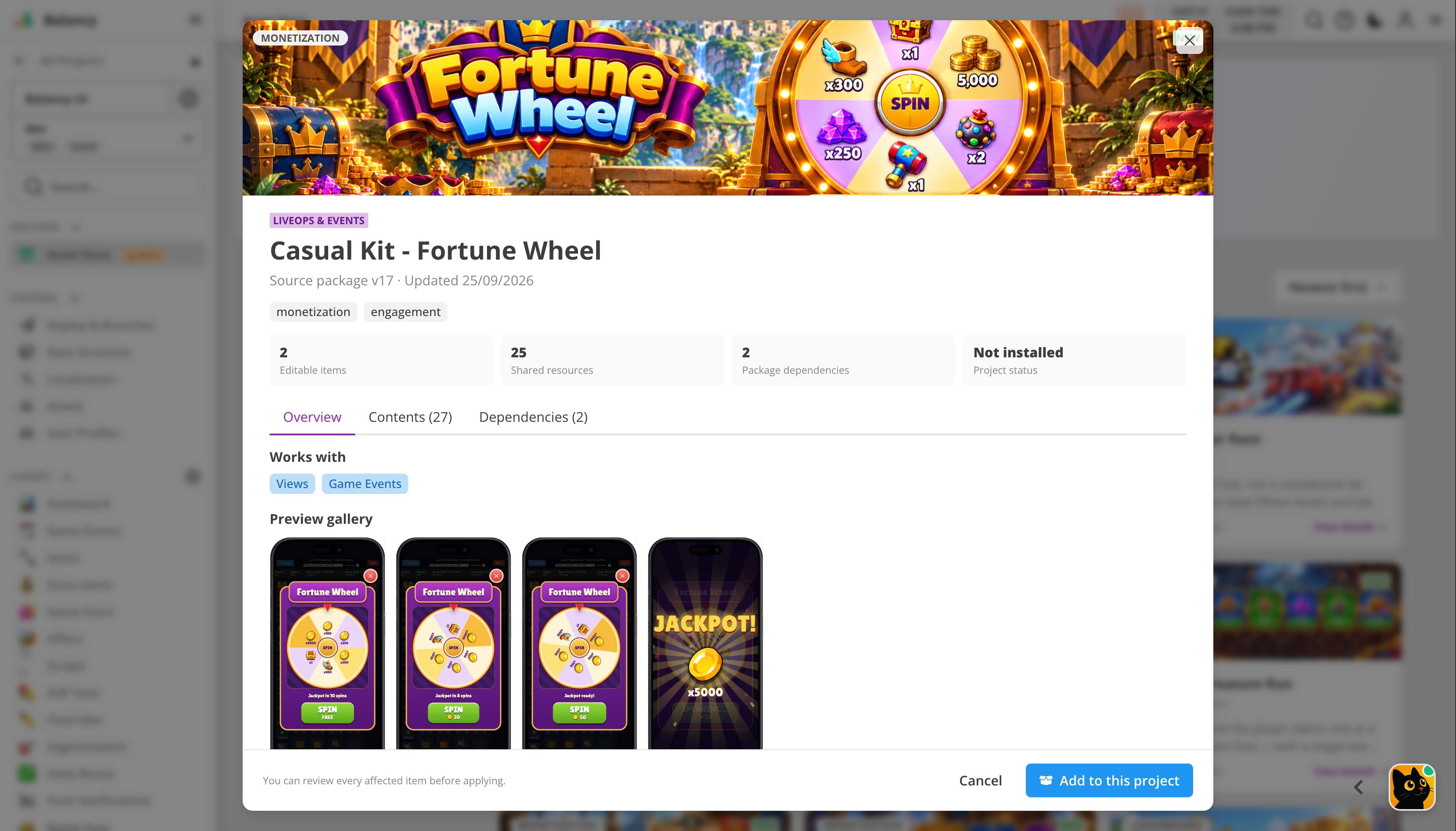
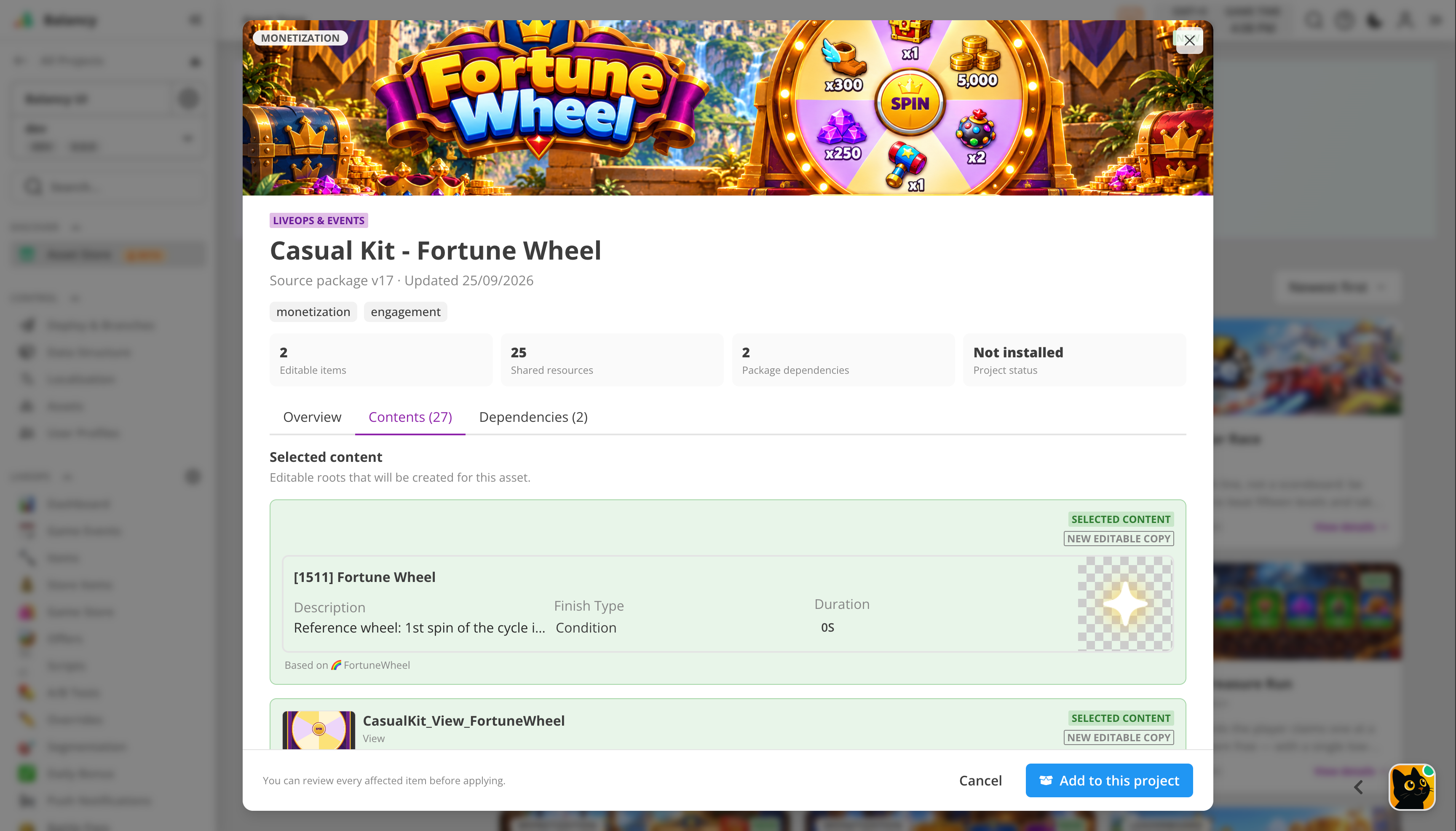
In Contents, Selected content is what you will be able to edit as a new copy. Required content lists the shared templates, scripts, images, fonts, localizations, and other resources discovered for this asset. The exact counts change as packages are updated.
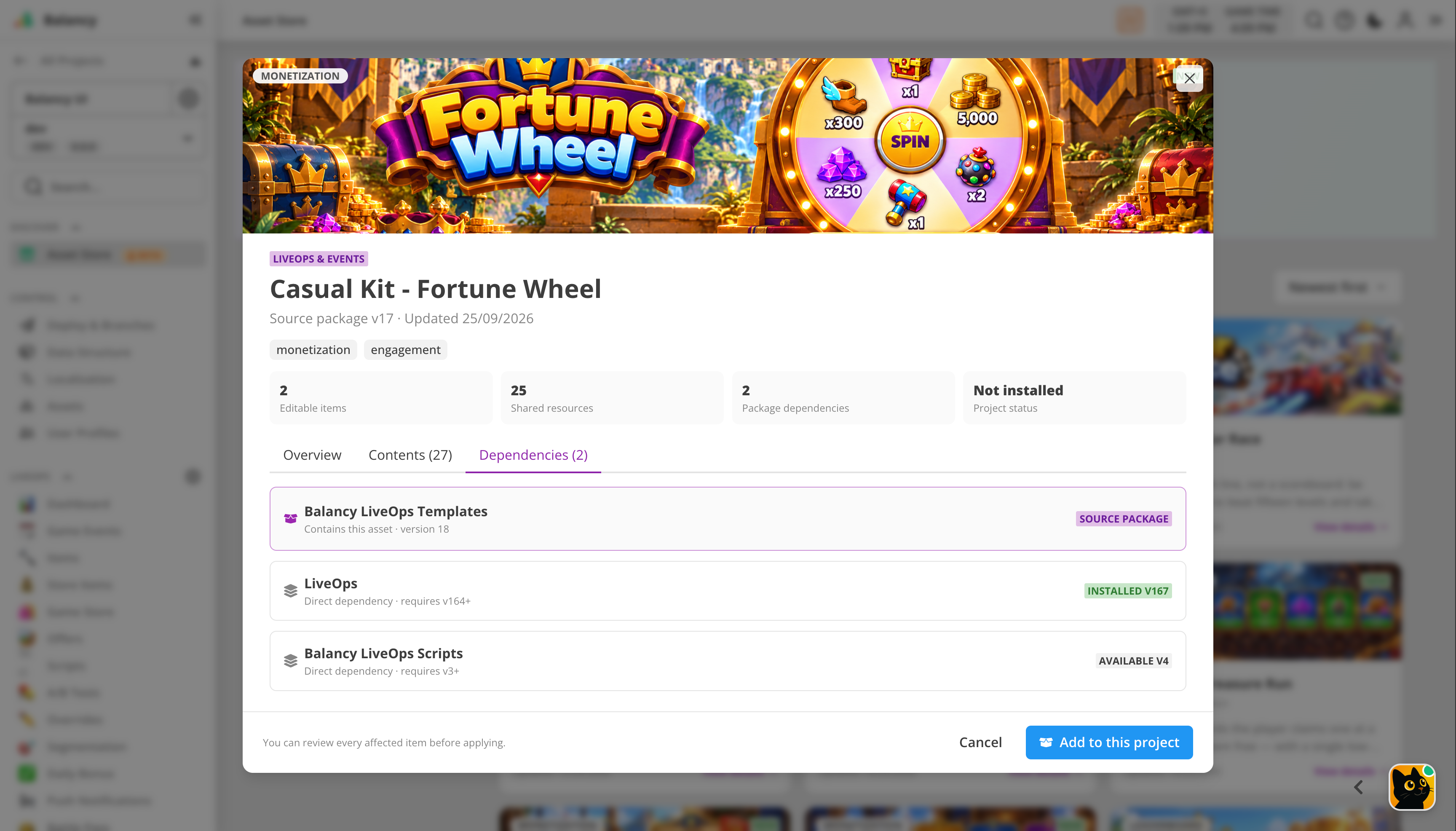
The Dependencies tab names the source package and any other packages required by it. For Fortune Wheel, the current card lists LiveOps and Balancy LiveOps Scripts. A package marked Installed is already present in the project; Available means it can be added during preparation.
Add the asset
- In the card, click Add to this project.
- Wait for Preparing package and dependencies… to finish. Balancy prepares the required packages and calculates an installation plan. This may take longer than simply reading the card's dependency list. The asset has not been added to your working branch yet.
- Review the plan. Editable copies are new items you can change; Shared resources belong to the source package; Packages to install lists missing packages; Items replaced warns about existing content that would be replaced. Expand Shared resources if you want to inspect them.
- Leave the event document and View selected, then click Add selected content. This applies the plan. The page reloads after a successful installation so the new content appears in the editor.
If the plan reports an error, do not continue. Keep its message and Request ID when contacting support. If Items replaced is greater than zero, review those items before confirming.
Walkthrough: test Fortune Wheel
The Fortune Wheel card currently provides two editable roots: a Fortune Wheel game-event document and CasualKit_View_FortuneWheel. The package supplies their required resources. Your project receives its own editable copies of the selected roots.
- After the page reloads, open LiveOps → Game Events and find the new Fortune Wheel event. Open it and confirm that its View points to the imported wheel View. You can also find that View under Assets → View.
- Review the event's activation condition and schedule. If the event is scheduled for a different date or requires a player condition, adjust it for your test. The Dashboard calendar shows scheduled events; an event that is not active for the current game time or player may not appear as an active icon in the Demo App.
- Review the wheel settings before release: prize sectors and weights, spin prices, limits, and the guaranteed-jackpot threshold. The example values demonstrate the mechanic; choose odds and prices appropriate for your game.
- Deploy the branch to the environment you are testing.
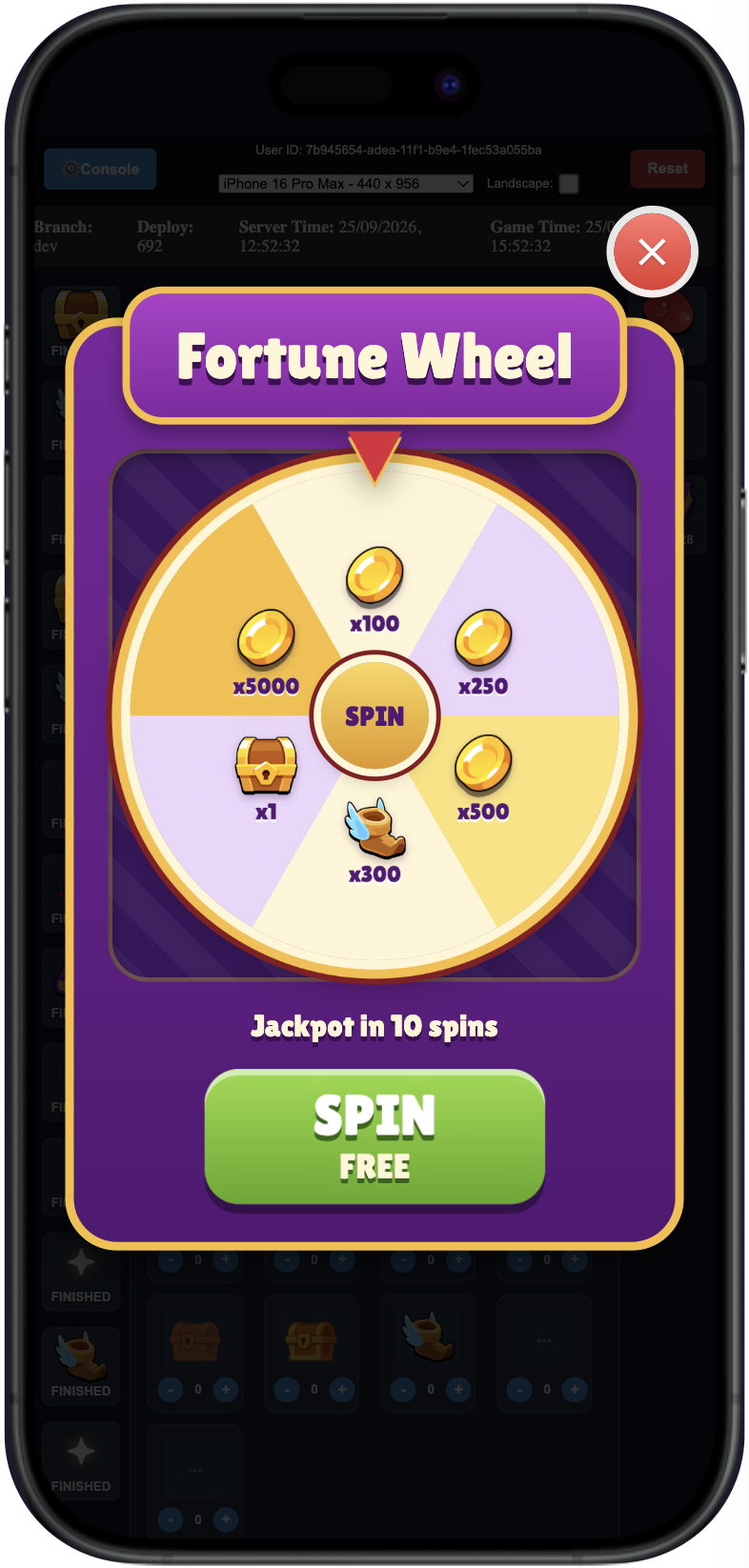
- Open the Demo App with the same environment. In Game Mode, find the active event icon and click it to open the wheel. Press SPIN and verify that the wheel stops, shows a result, and grants the configured reward. The first spin in the current example is free; later spins may require the configured currency.
- If you do not see the event icon, check Console Mode → Game Events to see whether the event is active for this simulated player. Check the event condition and game time; use Time Offset to test a future schedule or Reset to test with a new profile. Then reopen Game Mode.
The following screenshots show the publisher's Demo App preview. The event's schedule, conditions, and wheel settings in your project determine what you see after installation.
| First spin: free | Later spin: 20 coins in this example |
|---|---|
 |
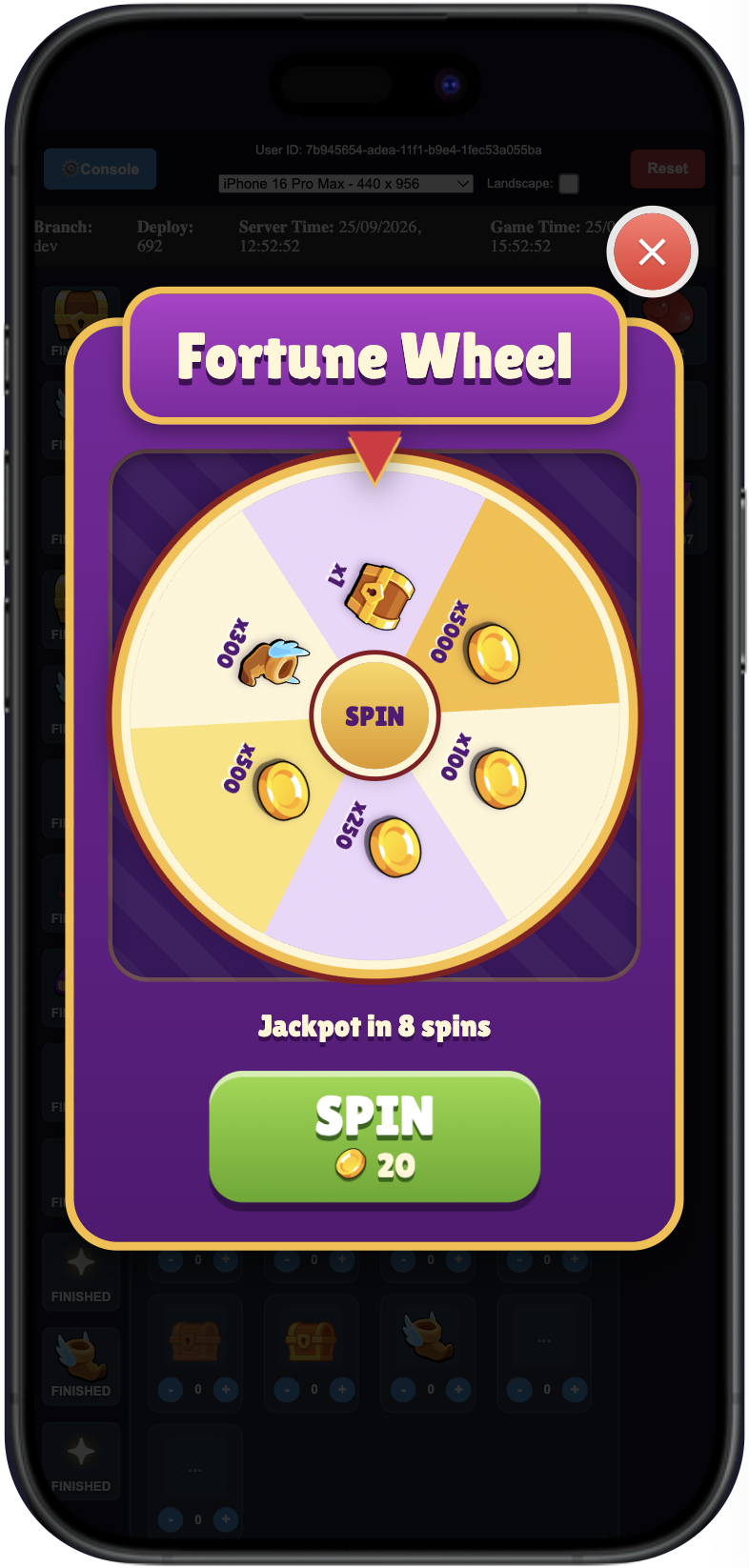 |
The Demo App is a simulation of a game using Balancy. Your actual game must integrate and display LiveOps events and Views; importing an asset alone does not add a new screen to a game client that has no such integration. See Game Events and Demo App.
Editing and adding again
The event document and View added as editable copies belong to your project. You can adjust their content without editing the catalog's source asset. Shared resources are maintained through the installed packages; treat them as package-owned content.
When you open a card again, its main button can say Add another copy or Update package & add, depending on the package version in your project. Review the new plan before confirming. An existing editable copy is not a live link to the catalog card, so do not assume changes to a published asset will rewrite your customized copy. Test package updates in a development branch before deploying them.
Troubleshooting
| What you see | What to check |
|---|---|
| The asset card is missing | Clear search, category, and tag filters. Catalog items must be published and visible to your project. |
| Preparation takes time | Balancy may be installing the source package and its dependencies and calculating all affected items. Wait for the plan or an error. |
| The event or View is missing after installation | Confirm that Add selected content completed and the page reloaded. Check the same project and branch, then search by name in Game Events and Assets → View. |
| The event is present but no icon appears | Check its activation condition, current game time, player state, and deployment. Console Mode lists active and inactive events for the simulated player. |
| The View opens but content is wrong | Check the event's View reference, the View preview, and any assets or localization values the View uses. |
| Installation reports an error | Copy the readable message and Request ID. Do not retry with different selections until the missing dependency or reference is understood. |